Gaming & Technology
USB vs PCIe WiFi Adapter: Which Is Better for Gaming?
Is a PCIe WiFi card really better than a USB adapter for gaming? We compare latency, stability, signal strength, installation, compatibility, and value to help you choose the right wireless upgrade.
By worth-the-cart
•
•
4 min read


The Wi-Fi adapter with the largest number on the box can still give you the worse gaming experience.
That sounds backward, but online games care far more about consistency than an impressive speed-test peak. A connection that holds steady throughout a match is more useful than one that downloads quickly and then produces a sudden latency spike when the signal weakens.
That is why the USB vs PCIe WiFi adapter decision should not be reduced to advertised megabits per second. The adapter's antenna position, driver quality, heat management, compatibility, and distance from the router can matter just as much as the way it connects to your PC.
This guide explains the practical differences between USB and PCIe Wi-Fi, when PCIe is genuinely better, and when opening your PC to install an internal card would add effort without creating a noticeable improvement.
USB vs PCIe WiFi Adapter: The Short Answer
A PCIe WiFi card is generally the better permanent choice for a gaming desktop because it usually offers strong antennas, reliable cooling, Bluetooth integration, and consistent long-term performance. A good USB WiFi adapter is the better choice when you want quick installation, easy antenna repositioning, portability, or a lower-effort upgrade.
PCIe does not automatically produce dramatically lower ping simply because it uses an internal expansion slot. The quality of the adapter, router, signal, drivers, and home network still determines the experience. A well-positioned USB adapter can outperform a poorly positioned PCIe card whose antennas are trapped behind a metal PC case under a desk.
If Ethernet is practical, a wired connection remains the simplest recommendation for competitive gaming. If it is not, both adapter types can work well when chosen and positioned properly.
PCIe WiFi Card vs USB WiFi Adapter: Quick Comparison
Difference | USB WiFi adapter | PCIe WiFi card |
|---|---|---|
Installation | Plugs into an external USB port | Requires opening the desktop and using a PCIe slot |
Typical setup time | Usually faster | Usually longer |
Port or slot used | Occupies a USB port | Occupies a PCIe slot; Bluetooth may also require an internal USB header |
Antenna placement | Easy to move when supplied with a cable or desktop base | Excellent when supplied with a movable antenna base; weaker if antennas remain hidden behind the case |
Long-term physical security | Can be knocked, unplugged, or moved | Secured inside the PC |
Heat management | Depends heavily on the adapter's size and design | Larger internal boards generally have more room to manage heat |
Bluetooth | Not always included | Common on combination Wi-Fi and Bluetooth cards |
Portability | Easy to move between compatible computers | Intended to remain in one desktop |
Best fit | Simple upgrades, temporary setups, laptops, and users who do not want to open the PC | Permanent gaming desktops and users prioritizing a clean, long-term installation |
How USB and PCIe WiFi Adapters Actually Differ
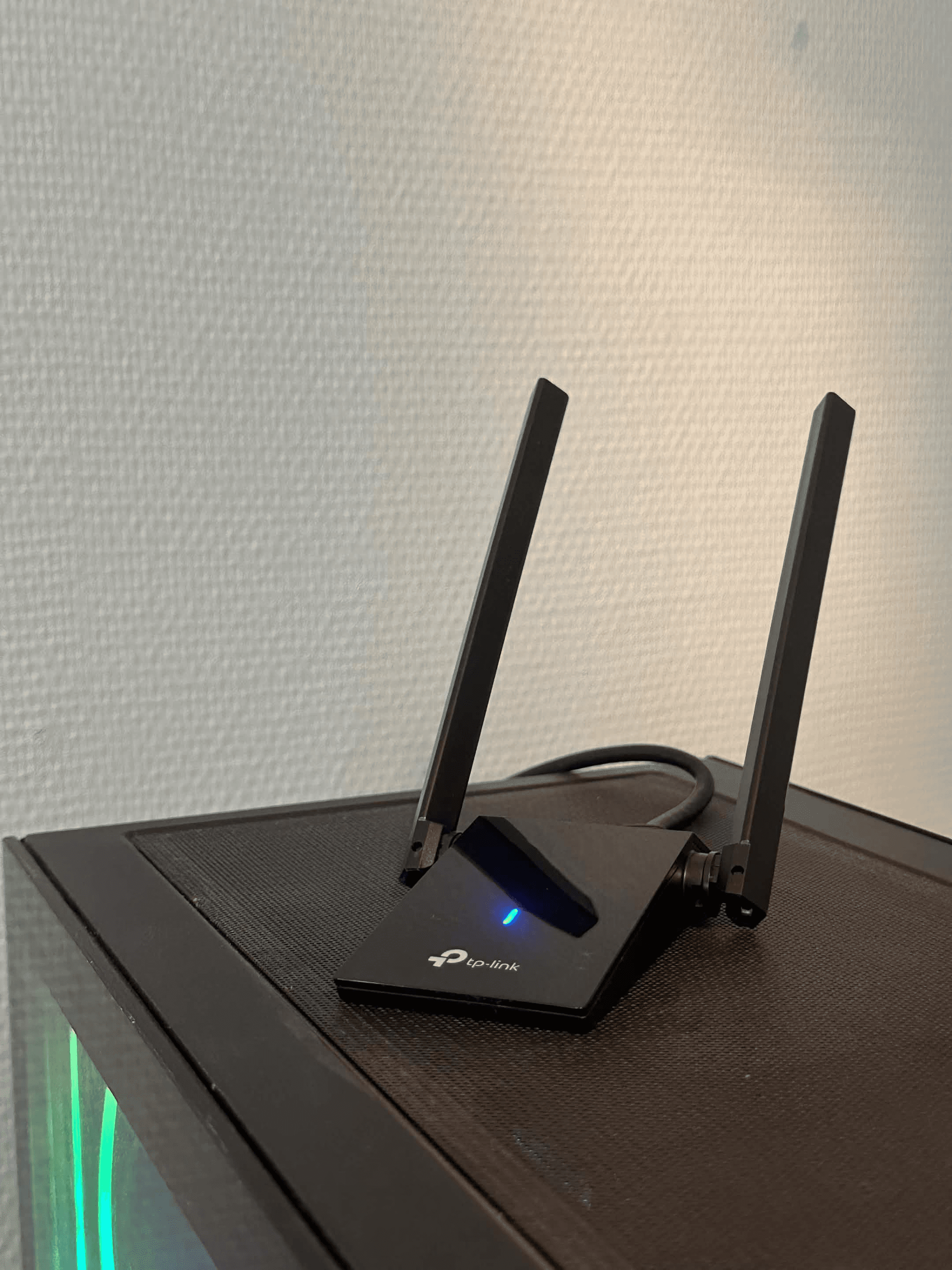
A USB WiFi adapter contains the wireless radio and connects through one of the computer's external USB ports. Designs range from tiny dongles with internal antennas to larger desktop adapters with adjustable high-gain antennas.
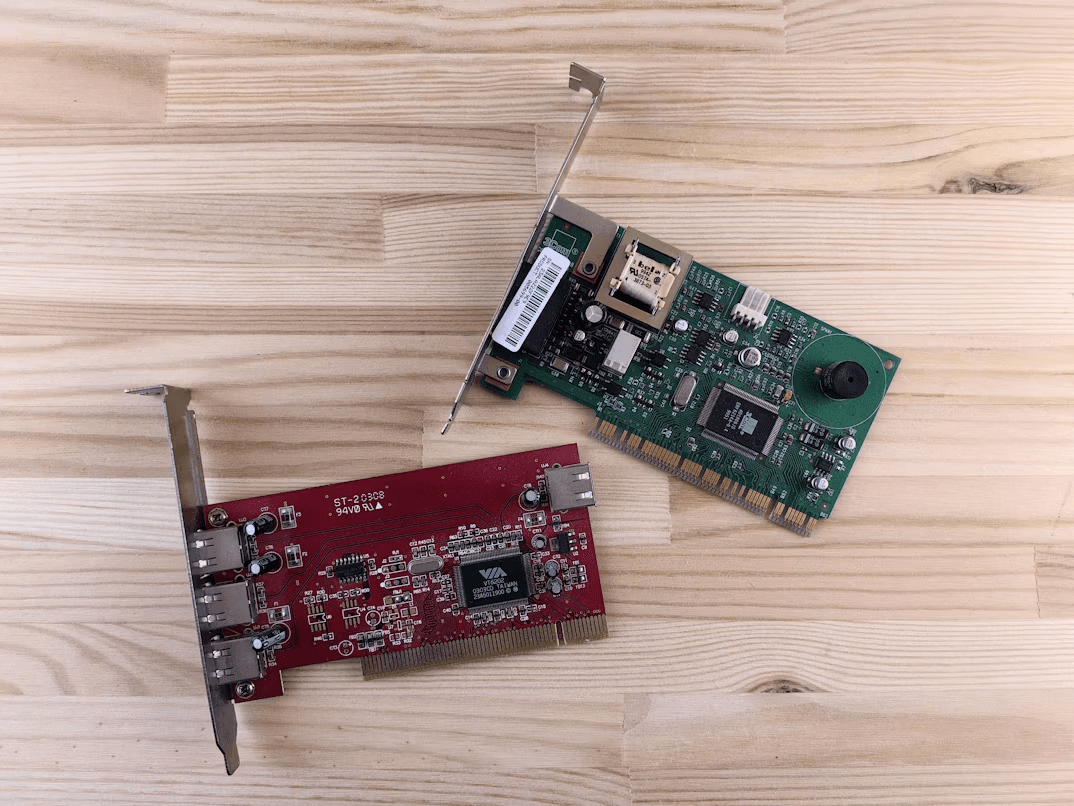
A PCIe WiFi card is installed in an expansion slot inside a desktop. The radio sits on the internal card, while one or more antennas connect at the rear of the PC. Better models often include a cable and magnetic antenna base that can be placed on the desk instead of leaving the antennas behind the tower.
The connection format is only one part of the comparison. USB and PCIe products can support different Wi-Fi generations, channel widths, antenna configurations, and security standards. An older PCIe card is not automatically better than a modern USB Wi-Fi 6 adapter. Likewise, a tiny low-cost USB dongle should not be expected to match a well-designed PCIe card with two external antennas.
As a current example of the underlying hardware, Intel's Wi-Fi 6E AX210 supports 2.4GHz, 5GHz, and 6GHz bands with a listed maximum link rate of 2.4Gbps. Intel identifies PCIe as the Wi-Fi interface and USB as the Bluetooth interface. That distinction explains an easily missed installation detail: a combination PCIe card may still need an internal USB connection for Bluetooth to work. Intel lists the AX210 interfaces and wireless specifications here.
Are PCIe WiFi Cards Better Than USB for Gaming?
In a like-for-like comparison, PCIe WiFi cards are usually the safer recommendation for a permanent gaming PC. They tend to combine larger antennas, secure installation, mature chipsets, and enough physical space to avoid the compromises found in the smallest USB dongles.
However, “usually better” is not the same as “always faster.” Five practical factors decide whether the difference will matter in your setup.
1. Latency and Jitter Matter More Than Peak Speed
Ping measures how long data takes to travel between your PC and a destination. Jitter describes how much that delay changes over time. Online gaming feels poor when latency becomes inconsistent, even if a conventional download test still looks fast.
PCIe is often associated with lower latency because many high-quality internal cards are designed for sustained performance. But the slot itself does not remove congestion from your router, interference from nearby networks, or delay on the route to the game server.
A quality USB adapter with a strong, clean signal may provide a better match than a PCIe card with badly positioned antennas. The practical goal is not to buy the fastest interface. It is to create the most stable wireless link between your PC and router.
2. Antenna Position Can Reverse the Result
Desktop PCs are often placed in exactly the wrong location for Wi-Fi: under a desk, against a wall, and surrounded by metal. If a PCIe card's antennas stay attached directly to the rear of the case, the tower itself can sit between those antennas and the router.
A USB adapter on an extension cable can be moved onto the desk in seconds. A PCIe card with a separate antenna base can solve the same problem. TP-Link's official specifications for its Archer TX3000E, for example, list two high-gain antennas and a magnetized antenna base. Its newer PCIe designs similarly emphasize moving the antenna base to find better reception. See the Archer TX3000E specifications and TP-Link's antenna-placement explanation.
This is one of the most overlooked points in the PCI-E vs USB WiFi adapter debate: the best adapter on paper can lose because of where its antennas end up.
3. USB Bandwidth Is Rarely the Real Limitation
Some buyers assume USB is automatically too slow for modern Wi-Fi. That is an oversimplification.
The USB Implementers Forum lists 5Gbps as one of the defined USB 3.2 transfer rates. That is comfortably above the advertised 1,201Mbps 5GHz link rate of an AX1800-class adapter such as the TP-Link Archer TX20U Plus. These are signaling and theoretical link figures rather than guaranteed real-world throughput, but the comparison shows why a proper USB 3.x connection is not normally the main bottleneck for this class of adapter. USB-IF explains the USB 3.2 transfer rates, while TP-Link lists the TX20U Plus band rates and features.
Problems are more likely when a fast adapter is connected to an older or poorly placed port, attached through an unreliable hub, or used with weak drivers. Always check which USB port the adapter requires instead of assuming every similarly shaped port performs identically.
4. PCIe Is Better Protected, but USB Is Easier to Replace
An internal card is secured inside the case. Once installed, it is difficult to knock loose, bend, or accidentally unplug. Larger boards also have more room for components and heat dissipation than a tiny nano dongle.
USB has a different long-term advantage: replacement is effortless. If the adapter fails or you upgrade to a newer standard, you do not have to open the PC. You can also move it to another compatible computer.
The most fragile USB setup is a long adapter sticking directly out of the front or rear of a tower where a chair, cable, or hand can hit it. A short extension cable or desktop cradle reduces that risk while improving placement.
5. Drivers Can Matter More Than the Connector
Both formats rely on driver support. Before purchasing, confirm the exact hardware version and supported operating systems on the manufacturer's support page. Do not assume a product works with macOS or Linux because it works with Windows.
This also affects long-term ownership. An adapter that receives stable driver updates is more valuable than one with a slightly larger advertised speed number but unreliable software. Microsoft recommends checking adapter details, the installed driver, connection failures, and disconnection reasons through Windows' wireless network report. The report can be generated with netsh wlan show wlanreport. Microsoft provides the complete wireless-report instructions.
Is a USB WiFi Adapter Good for Gaming?
Yes, a USB WiFi adapter can be good for gaming when it has stable drivers, suitable antennas, a strong connection to the router, and support for the Wi-Fi standard used by your network. It does not need to reach its advertised maximum speed to run an online game well.
A USB adapter makes particular sense when:
Your desktop has no built-in Wi-Fi.
You want a plug-and-play upgrade without opening the case.
Your graphics card blocks or crowds the available PCIe slot.
You need to reposition the adapter away from the back of the tower.
You may reuse the adapter with another PC later.
You want an inexpensive solution before committing to a larger network upgrade.
The compromise is that USB quality varies enormously. A tiny Wi-Fi dongle designed for basic browsing is not equivalent to a dual-antenna USB 3.x model intended for a desktop. If you want to see how a specific Wi-Fi 6 USB option fits into a real gaming setup, read our TP-Link Archer TX20U Plus review for gaming.
What Matters More Than the Specification Sheet
The advertised wireless class may be the least useful number on the box if the rest of the network cannot support it.
An “AX1800” label does not mean you will download at 1,800Mbps or receive that speed in a game. Manufacturers commonly build the class name by combining theoretical maximum rates across separate bands. TP-Link, for example, lists up to 1,201Mbps on 5GHz and 574Mbps on 2.4GHz for the TX20U Plus. Your PC normally connects using one band at a time, and real throughput is affected by overhead, interference, channel width, distance, router capability, and the internet plan itself.
These factors can matter more than USB versus PCIe:
Router position: Fewer walls and obstacles generally produce a stronger connection.
Antenna location: Moving antennas from behind the case to desk height can be more useful than changing adapter format.
Network congestion: Other devices uploading, downloading, or streaming can cause latency spikes.
Frequency band: A higher-frequency band may offer more capacity but usually has more difficulty through walls.
Driver quality: A fast adapter is not helpful if it disconnects or behaves unpredictably.
Router age: A new Wi-Fi 6 or Wi-Fi 6E adapter cannot create features that an older router does not support.
Game-server distance: No local adapter can fix a slow or distant server route.
Microsoft's guidance on home Wi-Fi specifically recommends reducing walls and obstacles, moving the device or access point, and checking interference from objects such as metal cabinets. That advice is simple, but it explains why changing antenna placement can sometimes outperform buying new hardware. Microsoft's home-layout guidance is available here.
Installation and Compatibility Traps Buyers Miss
Before Buying a USB Adapter
Check the adapter's operating-system support, required USB version, physical size, and driver installation method. A wide adapter may block the port beside it. A rear port may leave the antennas trapped behind the tower, while a front port can expose the adapter to accidental damage.
Also check whether you actually need Bluetooth. Many USB Wi-Fi adapters provide Wi-Fi only, so adding a wireless controller or headset may require a separate Bluetooth adapter.
Before Buying a PCIe Card
Confirm that the motherboard has a compatible free slot and that the graphics card does not block access. Check where the antennas will sit after installation. If the card includes Bluetooth, verify whether it needs a free internal USB header.
That last requirement is easy to miss. TP-Link lists PCI Express as the Wi-Fi card interface on the Archer TX3000E but separately lists an F_USB 2.0 interface for Bluetooth. A buyer can therefore install the card successfully and still wonder why Bluetooth is unavailable until the internal cable is connected.
Opening the PC is not especially difficult for an experienced builder, but it adds steps: shutting down, disconnecting power, removing the side panel, securing the card, routing any internal cable, attaching antennas, and installing drivers. If that process sounds stressful and your needs are ordinary, USB may provide nearly the same everyday experience with far less friction.
Hidden Ownership Costs—and When Upgrading Is Unnecessary
The purchase price is not the only cost. USB consumes an external port and may eventually encourage you to buy a hub or extension cable. PCIe consumes an expansion slot, may use an internal USB header for Bluetooth, and takes more time to install or move to another computer.
There is also a cost to solving the wrong problem. A new adapter will not repair poor router placement, an overloaded network, an unstable internet connection, or a slow game server. If every device in the home struggles at the same time, investigate the router and internet service before replacing the PC's adapter.
You may not need an upgrade at all when:
Your current connection remains stable throughout games.
Your ping problems occur only on one game or server.
Ethernet is already available and practical.
The router, rather than the adapter, is the oldest part of the network.
Moving the existing antennas fixes the weak signal.
A driver update resolves the disconnects.
The cheapest sensible purchase is not always new hardware. Sometimes it is a better antenna position and ten minutes spent checking the Windows network report.
USB vs PCIe WiFi: A Simple Decision Shortcut
Choose a PCIe WiFi card when you are building a permanent gaming desktop, have an accessible expansion slot, are comfortable opening the case, and want a tidy long-term solution. Prioritize a card with a movable antenna base rather than assuming fixed antennas behind the tower will be ideal.
Choose a USB WiFi adapter when you want the easiest setup, need to move the antennas into a better position, lack a usable PCIe slot, or expect to reuse the adapter with another computer. Avoid the smallest dongles when gaming stability and range matter; look for current driver support, USB 3.x connectivity, and proper external antennas.
Keep your existing motherboard Wi-Fi when it is already stable. Replacing functioning hardware solely to move from one connection format to another is unlikely to transform your games.
Choose Ethernet when competitive consistency is the priority and running a cable is realistic. It avoids the signal and interference variables that both wireless formats must manage.
Final Verdict: Is PCIe WiFi Better Than USB?
For most permanent gaming desktops, PCIe is the strongest overall choice. A good card offers secure installation, capable antennas, strong long-term reliability, and often Bluetooth in the same package. It is the option we would choose for a new desktop build when a free slot and a well-positioned antenna base are available.
But the answer to USB vs PCIe WiFi adapter is not that every PCIe card beats every USB adapter. A well-designed USB model can be an excellent value, especially when it can sit on the desk with a clear path toward the router. It is also far easier to install, replace, and move.
The most important trade-off is permanence versus flexibility. Choose PCIe for a clean internal upgrade you expect to keep. Choose USB for convenience and adjustable placement. And before buying either, make sure the real problem is the PC's adapter—not the router, walls, network congestion, or internet connection.
FAQ
Are PCIe WiFi Cards Better Than USB?
PCIe WiFi cards are generally better for a permanent desktop installation because they commonly provide capable antennas, reliable cooling, Bluetooth, and secure mounting. However, a quality USB adapter with better antenna placement can outperform a poorly positioned or outdated PCIe card.
Is a WiFi Adapter Good for Gaming?
Yes. A WiFi adapter is good for gaming when it maintains a stable connection with low jitter and minimal packet loss. Router quality, signal strength, interference, and network traffic often matter more than the adapter's advertised maximum speed.
Is a USB WiFi Adapter Good for Gaming?
A modern USB WiFi adapter can be good for mainstream online gaming, particularly when it uses a suitable USB port and has adjustable external antennas. Ethernet or a quality PCIe card remains preferable for players who prioritize the most consistent possible connection.
Does PCIe Wi-Fi Reduce Ping?
Not automatically. A good PCIe setup may be more consistent than a weak USB dongle, but the interface cannot remove latency caused by the router, internet provider, network congestion, Wi-Fi interference, or game server. Compare connection stability rather than expecting a guaranteed ping reduction.
Can USB 3.0 Handle Wi-Fi 6 Speeds?
For common consumer Wi-Fi 6 USB adapters, USB 3.x normally provides enough interface capacity. USB-IF identifies a 5Gbps signaling rate for USB 3.2 Gen 1, which is above the advertised single-band link rates of common AX1800 USB adapters. Real wireless and internet speeds will be lower than theoretical interface figures.
Is PCIe Wi-Fi Better Than Motherboard Wi-Fi?
Not necessarily. Many modern motherboards use wireless modules similar to those found on add-in cards. If the motherboard Wi-Fi has current standards, updated drivers, good antennas, and a stable connection, installing another PCIe card may provide little benefit.
Keep reading


