Buying Guide
·
1 products compared
Last updated
8.7
⭐ Best Value Pick
Best overall pick
TP-Link Archer TX20U Plus Review
Affiliate disclosure: WorthTheCart may earn a commission from qualifying purchases. This does not affect our editorial opinions, rankings, or recommendations.
Building a gaming PC feels great right up until Windows loads and the Wi-Fi button is missing.
That usually means the motherboard has no wireless card. You can open the case again, install a PCIe adapter, route antennas around the back, and possibly connect an internal cable for Bluetooth—or you can plug a small wireless adapter into USB and be online in minutes.
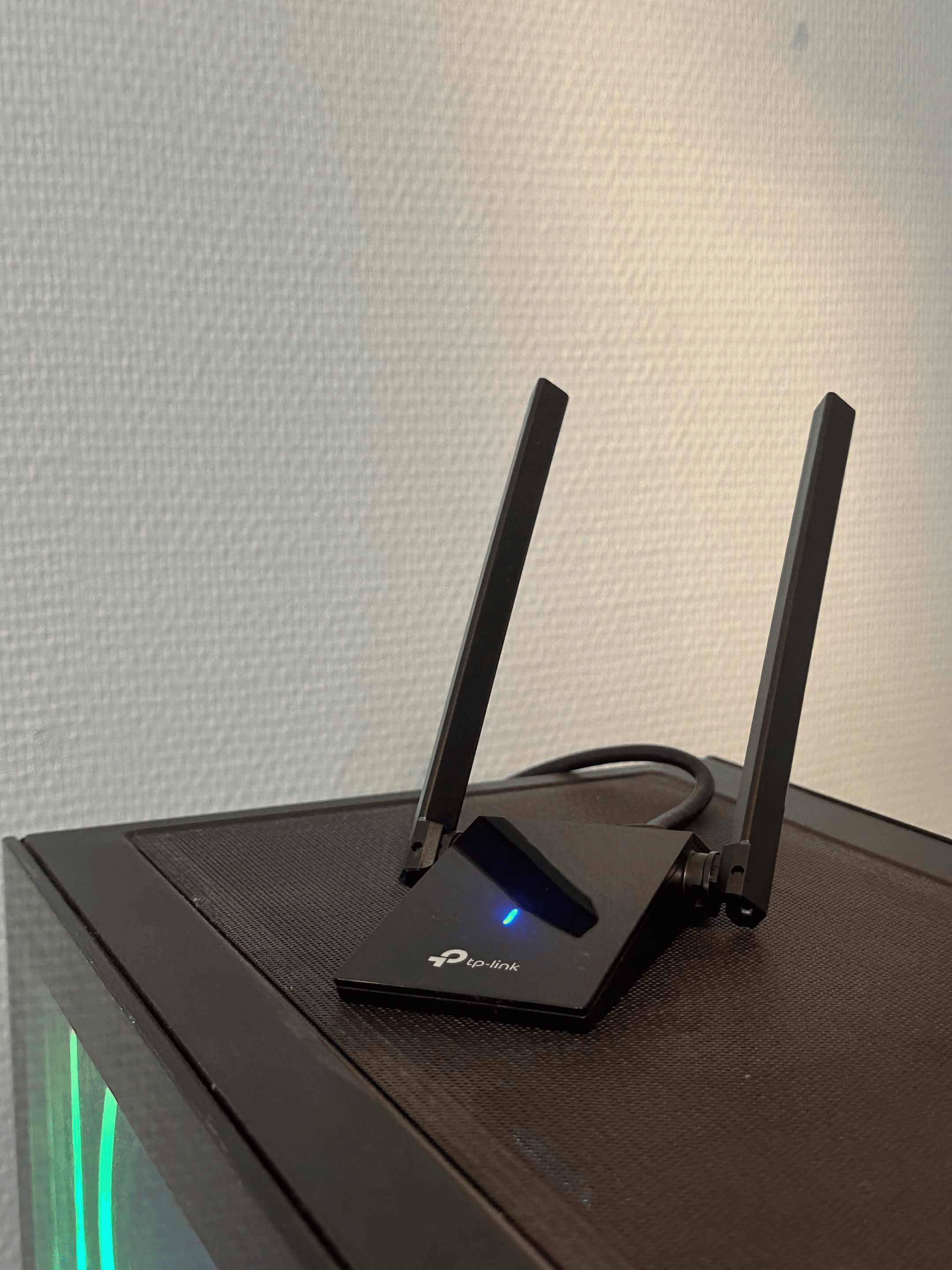
The $20 TP-Link Archer TX20U Plus is designed for the second option. This AX1800 Wi-Fi 6 adapter uses a one-meter USB 3.0 cable and two adjustable high-gain antennas, so it can sit on your desk instead of hiding behind a metal PC case.
That makes it more promising than a tiny Wi-Fi dongle, especially for a gaming desktop. But a large “1800 Mbps” number does not automatically mean low ping, and “good for gaming” is not the same as “better than Ethernet.”
This TP-Link Archer TX20U Plus review looks at what the specifications really mean, how placement affects everyday performance, what compatibility limitations matter, and which buyers are likely to regret choosing USB Wi-Fi.
Quick Verdict: Is the Archer TX20U Plus Worth It?
Yes—at around $20, the Archer TX20U Plus is a very good value for a Windows 10 or Windows 11 PC without built-in Wi-Fi. It is particularly sensible when running Ethernet is impractical and you want a simple Wi-Fi 6 connection without opening the computer.
Its strongest feature is not the AX1800 label. It is the combination of two adjustable antennas and a one-meter cable, which lets you move the receiver away from the signal-blocking PC case and find a better position on the desk.
The main trade-off is consistency. A correctly installed adapter on a healthy home network should be suitable for most online games, but wireless performance still depends on the router, walls, interference, drivers, and network traffic. Competitive players should use Ethernet when possible.
WorthTheCart score: 8.7/10
Best for: Windows desktop gamers who need an easy, inexpensive Wi-Fi connection
Skip it if: You use macOS or Linux, need Bluetooth as well as Wi-Fi, or can easily run Ethernet
Biggest advantage: Stronger, more flexible reception than a tiny nano adapter
Biggest limitation: USB and driver stability can require troubleshooting on some PCs
What Does the TP-Link Archer TX20U Plus Do?
The Archer TX20U Plus is an external wireless network adapter. It gives a compatible desktop or laptop access to Wi-Fi through a USB port, even if the computer has no internal Wi-Fi card.
That is useful in several common situations:
You built or bought a desktop with an Ethernet-only motherboard.
The internal Wi-Fi card in an older computer is slow or unreliable.
Your PC is too far from the router for a practical Ethernet cable.
A tiny USB adapter connects, but its weak position behind the tower produces poor reception.
You want Wi-Fi 6 without replacing the motherboard.
It does not replace your router or create internet access by itself. You still need an active internet connection and a wireless router. It also does not add Bluetooth, so wireless controllers, headphones, or keyboards that rely on Bluetooth will need a separate adapter.
TP-Link Archer TX20U Plus Specifications
According to TP-Link’s official product specifications, the adapter supports Wi-Fi 6 and earlier common Wi-Fi standards.
Specification | TP-Link Archer TX20U Plus |
|---|---|
Wi-Fi class | AX1800 dual-band Wi-Fi 6 |
5 GHz signal rate | Up to 1201 Mbps |
2.4 GHz signal rate | Up to 574 Mbps |
Wireless standards | IEEE 802.11a/b/g/n/ac/ax |
PC connection | USB 3.0 |
Antennas | Two high-gain dual-band adjustable antennas |
Antenna adjustment | Up to 180 degrees |
Cable | One-meter USB 3.0 cable |
Dimensions | 84 × 156.3 × 19.2 mm (3.3 × 6.2 × 0.76 inches) |
Security | WEP, WPA, WPA2, and WPA3 support |
Network features | Beamforming, MU-MIMO, and OFDMA |
Official operating-system support | Windows 10 and Windows 11 |
Included items | Adapter, one-meter USB 3.0 cable, and quick installation guide |
Bluetooth | No |
The official US specification page does not publish the adapter’s weight, so it would be misleading to guess. Hardware versions and regional support can also vary, making it worth checking the label on the product before downloading a driver.
Is the Archer TX20U Plus Good for Gaming?
Short answer
The Archer TX20U Plus is a good option for mainstream online gaming when you have a strong connection to your router. I use it myself on my PC, and it has been a simple and practical way to get Wi-Fi without installing an internal Wi-Fi card.
What I like about it is not necessarily the advertised 1800 Mbps speed. Games rarely need that much bandwidth. What matters more is having stable latency, low jitter, and minimal packet loss. A steady 80 Mbps connection can feel much better in a game than a connection that reaches 600 Mbps but suffers from random ping spikes.
That said, I would not pretend that it is better than Ethernet. A wired connection is still the best choice for the lowest and most consistent latency, particularly for competitive games. The TX20U Plus also cannot fix an overloaded router, congestion from your internet provider, distant game servers, or someone else using all the available bandwidth.
What it can improv and what makes it useful for my own setup—is the wireless connection between the PC and the router. For someone whose gaming PC does not have a Wi-Fi card and who cannot easily run an Ethernet cable, it is a convenient and affordable solution.
Why the external antennas matter
Desktop towers are bad places to hide a wireless receiver. The case is usually metal, the rear USB ports face a wall, and the computer may sit under a desk beside cables and other electronics.
The TX20U Plus avoids that problem with a desktop base and one-meter cable. You can place it on the desk, rotate the antennas, and move it several inches in either direction to find a cleaner signal.
This matters more than it sounds. Imagine starting a match while the adapter is trapped between the rear of the PC and a wall. The network may look fine in the Windows taskbar, but a marginal signal can become less stable when household traffic increases. Moving the receiver above the desk and away from the case may be more valuable than buying an adapter with a more impressive number on the box.
TP-Link also lists OFDMA and MU-MIMO support. With a compatible router, these Wi-Fi 6 technologies can help the network handle several active devices more efficiently. They do not create a private fast lane for the gaming PC, however, and the benefit depends on the router supporting the same features.
Why Ethernet still wins
Wireless has variables that a cable largely removes: interference, signal strength, competing networks, walls, and antenna position. If the router is in the same room and you can route a cable without creating a trip hazard, a basic Ethernet connection is still the better gaming choice.
That does not make the TX20U Plus a bad gaming adapter. It makes it a practical compromise. For Fortnite, Minecraft, GTA Online, co-op games, MMOs, and most casual or ranked play, a stable Wi-Fi connection can be completely usable. For serious Counter-Strike 2, Valorant, or FPS games where every latency spike matters, use Ethernet if at all possible.
What “AX1800” Really Means
The TP-Link AX1800 dual antennas high gain wireless USB adapter is advertised with an 1800 Mbps data-transfer rate. That figure needs context.
TP-Link rates it for up to 1201 Mbps on 5 GHz and up to 574 Mbps on 2.4 GHz. Add those theoretical link rates together and you get 1775 Mbps, which is marketed as the AX1800 class.
Your PC does not normally combine both bands into one 1800 Mbps internet connection. It connects to one band at a time, and the advertised figures are maximum wireless signal rates under favorable conditions—not guaranteed download speeds.
Real throughput is reduced by protocol overhead, distance, walls, interference, router capability, internet-plan speed, and network traffic. A 300 Mbps internet plan will not become an 1800 Mbps plan because you install this adapter.
The AX1800 label is still useful for comparing the adapter’s general class, but it should not be your main buying reason. For gaming, stable reception and sensible placement matter more.
Does USB 3.0 Make It Ten Times Faster?
TP-Link says the SuperSpeed USB 3.0 interface supports transfer speeds up to ten times faster than USB 2.0. That comparison describes the theoretical capacity of the USB connection: 5 Gbps for USB 3.0 versus 480 Mbps for USB 2.0.
It does not mean this adapter will make your internet ten times faster.
USB 3.0 is still important because it gives the wireless adapter enough headroom and avoids an unnecessary interface bottleneck. Plug the TX20U Plus into a USB 3.x port whenever possible. These ports are often blue, although color is not guaranteed on every PC.
TP-Link’s own plug-and-play troubleshooting guide strongly recommends a USB 3.0 port. If the adapter is unstable, however, the company’s separate support guidance suggests testing its USB mode setting and reinstalling the official driver. In other words, USB 3.0 is the preferred performance choice, but compatibility troubleshooting may require experimentation on a particular motherboard.
Archer TX20U Plus Setup: The Simple Version
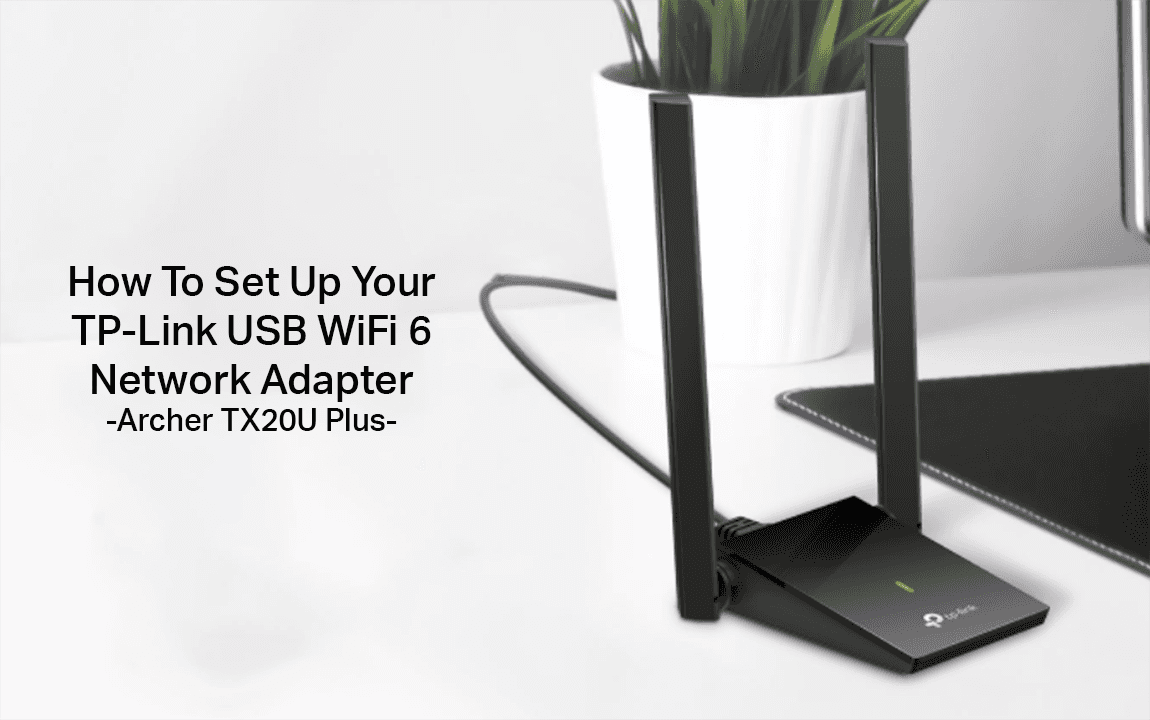
The adapter includes a preloaded driver, so initial setup should be straightforward on a supported Windows PC.
Connect the antennas and place the adapter on the desk.
Plug the cable into an available USB 3.0 port.
Open the preloaded installer if Windows presents it.
Complete the installation and restart the PC if requested.
Select the normal Wi-Fi icon in Windows, choose your network, and enter the password.
Test both position and band before deciding the setup is finished.
For a router in the same room or a room nearby, start with 5 GHz. It offers the adapter’s higher maximum rate and is generally the better choice for gaming when the signal is strong.
Use 2.4 GHz when the PC is farther away or separated from the router by several obstacles. It has a lower maximum rate but often reaches farther. Do not force 5 GHz just because its number is larger; a strong 2.4 GHz connection can be more usable than a weak, fluctuating 5 GHz link.
Placement checklist
Keep the adapter above the floor.
Avoid hiding it directly behind the PC case.
Leave some space around both antennas.
Try the antennas upright first, then adjust them if reception is weak.
Move the base in small increments and check ping stability, not just download speed.
Keep the cable relaxed instead of sharply bent at the connector.
If plug-and-play installation fails, use the driver for the correct hardware version from TP-Link’s official TX20U Plus support page. As of July 2026, that page lists Windows 10/11 drivers, including a December 2025 beta release and an October 2024 non-beta release. Because driver availability varies by region, use the support site for the market where the adapter was purchased.
Common Complaints and What to Try
Most buyers are looking for a device they can install and forget. The TX20U Plus can provide that experience, but reports of disconnect/reconnect loops, disappearing Wi-Fi, ping spikes, and failed automatic driver installation are worth taking seriously.
The existence of a problem report does not prove that every unit has the same fault. USB controllers, motherboard firmware, Windows power settings, drivers, routers, and signal conditions all vary. Still, TP-Link maintains an official instability troubleshooting page, so it is sensible to know the recovery steps before buying.
If the adapter is unstable:
Try another USB 3.x port. Front-panel ports and hubs add more variables, so test a direct motherboard port as well.
Install the current official driver. Uninstall the existing adapter and driver first if the installation appears corrupted, then restart after reinstalling.
Check Windows power management. In Device Manager, open the adapter’s properties and look for a setting that allows Windows to turn off the device to save power. Disabling that option has helped some owners with unwanted USB disconnects.
Test the other Wi-Fi band. Severe 5 GHz signal fluctuation may improve on 2.4 GHz, while crowded 2.4 GHz conditions may improve on 5 GHz.
Move the adapter. A one-meter extension cable is only useful if you use it to escape a poor reception spot.
Follow TP-Link’s USB mode guidance. The company suggests testing the adapter’s USB Switch Mode setting when instability persists.
If the adapter repeatedly disappears from Device Manager across several direct USB ports after a clean official-driver installation, return or exchange it rather than spending days trying random advanced settings.
USB Adapter vs. PCIe Wi-Fi Card vs. Ethernet
The TX20U Plus is not automatically the right solution merely because it is easy to install.
Option | Best advantage | Main compromise | Best for |
Archer TX20U Plus | Fast, easy installation with movable antennas | Uses a USB port and desk space; no Bluetooth | A Windows PC needing Wi-Fi now |
Ethernet | Best consistency and usually the lowest local-network latency | Requires cable routing | Competitive gaming and permanent desks |
PCIe Wi-Fi 6 card | Clean permanent installation; many models include Bluetooth | Requires opening the PC and a free slot | Long-term desktop builds |
Nano USB adapter | Tiny and easy to carry | Small antennas and poor behind-PC placement | Travel or light browsing |
If you expect to keep the gaming PC at the same desk for years, a good PCIe card can be worth the extra installation effort. Many PCIe kits also add Bluetooth, although Bluetooth may require a separate internal USB-header connection.
If you need Wi-Fi tonight, do not want to open the case, or want to move the adapter between PCs, the TX20U Plus is the more convenient purchase.
Is a $20 Wi-Fi Adapter Good Long-Term Value?
At the $20 price used for this review, the value case is simple.
Used daily for two years, the adapter costs about 2.7 cents per day:
$20 ÷ 730 days = $0.027 per day
Over three years, that falls to roughly 1.8 cents per day.
The hidden cost is not electricity or a subscription. It is the possibility of spending time troubleshooting drivers, giving up a USB port, and keeping another cable on the desk. For most compatible Windows users, those are reasonable compromises. For someone who already knows they want Bluetooth and a permanent internal solution, buying a separate USB Bluetooth adapter later can make the “cheap” option less tidy and less economical.
You also do not need to upgrade merely because Wi-Fi 6 exists. If an older adapter already gives you stable latency, full access to your internet-plan speed, and no disconnects, replacing it may produce a better benchmark without changing the gaming experience.
Spend more when you need Wi-Fi 6E or Wi-Fi 7, official support for another operating system, Bluetooth in the same upgrade, or a more permanent internal setup. Do not spend more solely to chase a larger theoretical speed number on a 100–300 Mbps internet plan.
Reasons to Buy
Adds Wi-Fi 6 to a Windows desktop without opening the case
Very strong feature set for around $20
Up to 1201 Mbps on 5 GHz and 574 Mbps on 2.4 GHz
Two adjustable high-gain antennas are better suited to a stationary gaming PC than a tiny dongle
One-meter cable makes useful desktop placement possible
USB 3.0 provides enough interface headroom
WPA3, MU-MIMO, OFDMA, and beamforming support
Simple setup when the preloaded driver works correctly
Easy to move to another compatible PC
Reasons to Avoid
Ethernet is still better for competitive gaming consistency
Official support is limited to Windows 10 and Windows 11
Does not add Bluetooth
Some users may need to troubleshoot drivers, USB power management, or disconnects
Takes up more desk space than a nano adapter
AX1800 is a theoretical class rating, not a guaranteed 1800 Mbps connection
Wi-Fi 6 network benefits depend on the router and local conditions
WorthTheCart Score
Category | Score | Why |
Value | 9.4/10 | Wi-Fi 6, dual antennas, USB 3.0, and a cable-mounted base are excellent at around $20. |
Everyday Use | 8.9/10 | Easy to install, reposition, and move between Windows PCs. |
Build | 8.2/10 | The desktop design is practical, but it adds a cable and two exposed antennas to the desk. |
Regret Potential | 8.3/10 | Low for supported Windows users; higher if you need Bluetooth, another OS, or perfect competitive consistency. |
Overall | 8.7/10 | One of the most sensible inexpensive fixes for a gaming desktop without Wi-Fi, provided its limitations match your setup. |
Final Verdict: Should You Buy the TP-Link Archer TX20U Plus?
The answer is yes for the buyer this product was actually made for: someone with a Windows 10 or Windows 11 desktop, no internal Wi-Fi card, no convenient Ethernet route, and about $20 to solve the problem.
The TP-Link Archer TX20U Plus is good for gaming because it combines Wi-Fi 6 with adjustable external antennas and flexible placement. Those practical details can matter more than the AX1800 number, especially when the alternative is a tiny receiver hidden behind a metal PC.
It is not the strongest choice for every gamer. Use Ethernet if competitive consistency is the priority. Choose a PCIe card if you want a permanent internal upgrade or need Bluetooth too. Avoid this model if you require official macOS or Linux support.
For everyone else, the trade-off is easy to accept. It takes up a little desk space and may occasionally demand driver troubleshooting, but it makes a PC without Wi-Fi useful in minutes. At around $20, it makes daily life noticeably easier without asking you to replace the motherboard—and that is enough to make it worth the cart.
6. FAQ
Does the TP-Link Archer TX20U Plus work on a PC without a Wi-Fi card?
Yes. That is one of its main purposes. It adds Wi-Fi through a USB port, so the computer does not need an internal wireless card. You still need a wireless router and an internet service.
Is the Archer TX20U Plus good for gaming?
Yes, it is suitable for most online gaming when the router signal is strong and stable. Ethernet remains the better choice for the lowest and most consistent latency, especially in competitive games.
Do I need a Wi-Fi 6 router?
No. The adapter is backward compatible with earlier listed standards, including Wi-Fi 5/802.11ac. However, Wi-Fi 6-specific features and maximum Wi-Fi 6 link rates require a compatible router.
Can the TX20U Plus reach 1800 Mbps?
AX1800 is a rounded class rating based on up to 1201 Mbps on 5 GHz plus up to 574 Mbps on 2.4 GHz. It is not a guaranteed 1800 Mbps internet speed, and the PC normally connects to one band at a time.
Does it work in a USB 2.0 port?
USB 3.0 is the recommended connection and provides the headroom needed for the adapter’s higher rates. A USB 2.0 mode may be useful in troubleshooting, but using USB 2.0 can limit performance. Start with a direct USB 3.x port.
Does the Archer TX20U Plus include Bluetooth?
No. It adds Wi-Fi only. If the PC also needs Bluetooth for a controller, headset, keyboard, or other accessory, you will need a separate Bluetooth adapter or a Wi-Fi/Bluetooth PCIe card.
Does the Archer TX20U Plus support Windows 11?
Yes. TP-Link officially lists support for Windows 10 and Windows 11. Download the correct driver for the product’s hardware version and region if the preloaded installer does not work.
Does it support macOS or Linux?
TP-Link’s official product page lists Windows 10 and Windows 11, not macOS or Linux. Community drivers may exist for some chipsets and distributions, but buyers who need dependable official support should choose an adapter explicitly supported by their operating system.
Pros
Easy to install without opening the PC Good performance for mainstream online gaming Two powerful, adjustable high-gain antennas Up to 1201 Mbps on the 5 GHz band USB 3.0 connection Excellent value at around $20 Supports Windows 10 and Windows 11 One-meter cable allows better adapter placement
Cons
Ethernet still provides more consistent gaming latency Does not include Bluetooth No official macOS or Linux support Some users may experience driver or USB stability problems Takes up more desk space than a nano adapter AX1800 does not mean you will receive 1800 Mbps internet speeds
WorthTheCart? Final Verdict
The TP-Link Archer TX20U Plus is worth the cart for Windows gamers who need Wi-Fi but do not have an internal wireless card. I use it myself, and it offers a simple, affordable way to get a gaming PC online without opening the case or replacing the motherboard. Ethernet remains the better option for highly competitive gaming, but for most players, the TX20U Plus provides a strong balance of performance, convenience, and value.