Technology
Slow iPhone? Change These 3 Settings Before You Replace It
A slow iPhone does not always need replacing. These three settings can reduce performance restrictions, simplify animations, free storage, and make your device feel more responsive.
By Worth the cart
•
•
3 min read

A slow iPhone rarely fails all at once.
It usually starts with delays so small that you initially ignore them. The keyboard takes an extra moment to appear. The camera hesitates just long enough for you to miss a photo. Apps that once opened instantly now pause on a blank screen. Swiping back to the Home Screen feels heavier, and switching between two apps becomes less fluid than you remember.
None of these problems seems serious on its own.
Together, however, they can make a perfectly usable iPhone feel several years older overnight.
That is often when people begin looking at replacement prices. They assume the processor is worn out, the software has become too demanding, or the phone has simply reached the end of its useful life.
But before replacing an iPhone, it is worth checking whether the device is actually slow—or whether its current settings are making it behave that way.
Some iPhone settings deliberately reduce performance to conserve battery power. Others add visual transitions that make every action feel longer. Low storage can also leave iOS with too little room for updates, temporary files, downloads, and normal system management.
These are three different problems, and they require three different solutions.
For many users, the most useful settings to change are:
Turn off Low Power Mode when full performance matters.
Turn on Reduce Motion to simplify slow-feeling animations.
Enable Offload Unused Apps and create more free storage.
These changes will not transform an old iPhone into the newest model. They cannot repair damaged hardware, reverse battery aging, or make an unsupported device last forever.
What they can do is remove avoidable restrictions and help you find out whether the phone actually needs replacing.
The Quick Answer: Which Three iPhone Settings Can Improve Speed?
Here is what each setting changes:
Setting | What it changes | Who may notice the biggest difference |
|---|---|---|
Low Power Mode: Off | Removes power-saving restrictions that can make certain tasks slower | Users who leave Low Power Mode enabled most of the day |
Reduce Motion: On | Simplifies animations and visual transitions | Users who feel that opening apps and navigating iOS looks sluggish |
Offload Unused Apps: On | Frees storage while preserving app documents and data | Users whose iPhone storage is nearly full |
The first change affects how the device manages power.
The second affects how quickly the interface appears to respond.
The third addresses storage pressure, which can interfere with the phone’s normal operation.
That difference matters because “my iPhone is slow” does not always mean the same thing.
First, Identify What “Slow” Actually Means

Before changing anything, pay attention to where the delay occurs.
Does the entire interface feel heavy, or is the problem limited to one app? Does the phone become slow only when the battery is low? Are websites taking a long time to load while offline apps work normally? Does the phone feel warm when performance drops?
These details help separate a genuine device-performance issue from a network, app, battery, or temperature problem.
A slow iPhone usually falls into one of five categories.
The Interface Feels Slow
Apps may open correctly, but animations, transitions, and menus feel drawn out. This is where Reduce Motion can make the biggest visible difference.
The Phone Is Restricting Power Use
The battery icon is yellow, Low Power Mode is active, and some tasks feel less responsive. Turning off Low Power Mode lets you test the device without those power-saving restrictions.
Storage Is Almost Full
Updates fail, videos will not save, apps reload, and the phone has very little available space. Offloading unused apps and removing large downloads can help.
Only Online Content Is Slow
Social feeds, websites, cloud photos, and streaming services load slowly, but Settings, Notes, and offline photographs work normally. This usually points toward a network problem rather than a processor problem.
The Battery or Temperature Is Limiting Performance
The phone becomes hot, battery health is degraded, or iOS displays a battery-service recommendation. In that situation, changing animations may improve the experience slightly, but it will not solve the underlying issue.
The three settings below are valuable because they help address the first three categories without requiring a purchase or repair.
1. Turn Off Low Power Mode When You Need Full Performance
Low Power Mode is one of the most useful features on an iPhone.
It is also one of the first settings worth checking when the phone feels unexpectedly slow.
How to Turn Off Low Power Mode
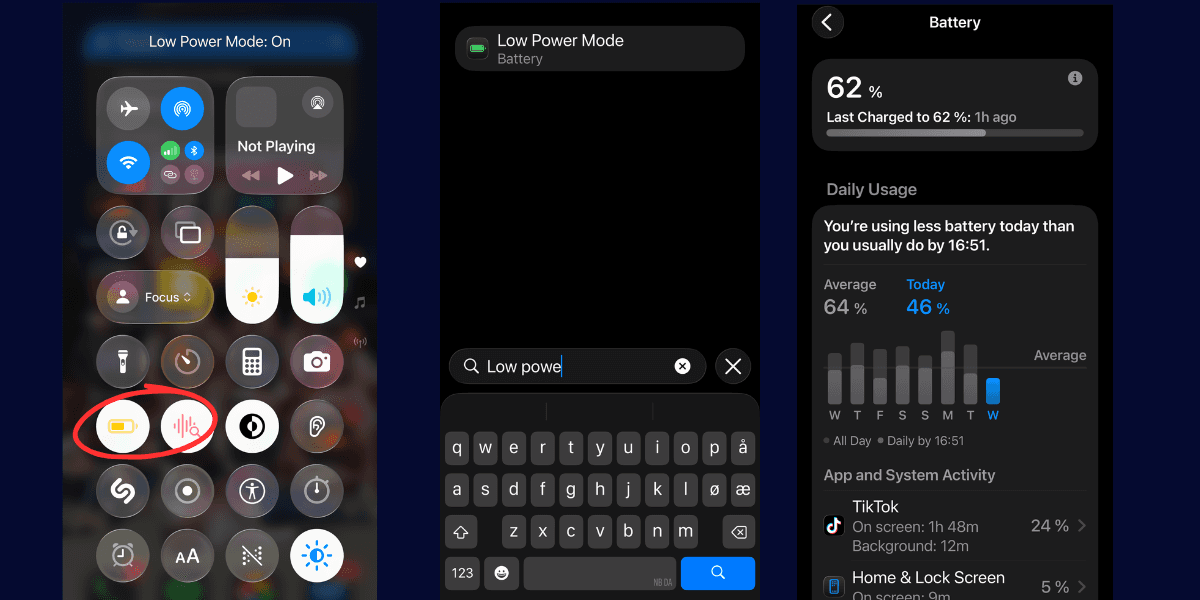
On iPhone 15 models and later:
Settings > Battery > Power Mode > Low Power Mode
On iPhone 14 models and earlier:
Settings > Battery > Low Power Mode
You can also recognize Low Power Mode by the yellow battery icon in the status bar.
Apple designed Low Power Mode to extend the remaining battery life by reducing the amount of power the device uses. Depending on the iPhone and software version, it can affect background activity, automatic downloads, email fetching, visual effects, display brightness, iCloud Photos syncing, and display refresh rate on models with ProMotion. Apple also states that an iPhone may perform some tasks more slowly while the mode is active.
That does not make Low Power Mode a bad setting.
It simply means that it is designed to prioritize battery endurance rather than maximum performance.
The Problem With Leaving It Enabled Constantly
Low Power Mode is intended for situations where preserving battery life matters more than speed.
Perhaps you are travelling, your battery has fallen below 20 percent, or you still have several hours before you can reach a charger. In those circumstances, reducing background activity and limiting non-essential features is a sensible compromise.
The problem appears when a temporary battery-saving measure becomes a permanent operating mode.
Some users enable Low Power Mode manually every morning, even when the battery is nearly full. Others use an automation that activates it far above the usual low-battery threshold. The phone then spends much of the day operating under restrictions intended to extend its remaining charge.
This can be especially noticeable on an iPhone with a ProMotion display. Low Power Mode can limit the refresh rate to 60Hz, making scrolling and animations appear less fluid than they do at the display’s higher supported refresh rate.
That does not necessarily mean apps are taking dramatically longer to calculate or load. The reduced fluidity itself can make the device feel slower.
When Turning It Off Can Help
Turning off Low Power Mode is most useful when:
Your battery icon is yellow most of the day
Scrolling feels less fluid than expected
Background downloads and syncing appear delayed
You are editing photos or video
You are gaming
You are testing whether the phone has a performance problem
The phone is connected to a charger
Battery preservation is not currently important
After turning it off, test the same actions that felt slow.
Open the camera. Scroll through a long page. Launch a demanding app. Switch between several screens. Do not judge the result based only on one animation—use the phone normally for a few minutes.
When You Should Keep Low Power Mode Enabled
There are many situations where longer battery life is more valuable than maximum responsiveness.
Keep using Low Power Mode when:
Your battery is nearly empty
You are travelling without reliable access to charging
You need the phone to remain available for calls or navigation
You are attending a long event
You are dealing with a power outage
Your battery drains unusually quickly and you cannot have it serviced yet
The purpose is not to tell users to abandon Low Power Mode. It is to understand the trade-off.
A battery-saving feature should not be mistaken for the phone’s normal performance.
Why This Setting Is a Better Test Than a Random “Speed Hack”
Many online iPhone tips involve clearing data, force-closing apps, changing settings with little connection to performance, or repeatedly restarting the device.
Turning off Low Power Mode is different because Apple directly acknowledges that certain features can operate more slowly while the mode is enabled. Apple’s own troubleshooting guide recommends leaving Low Power Mode off when users need the device to function without low-power restrictions.
That makes it a useful first troubleshooting step.
It is reversible, immediate, and does not delete anything.
2. Turn On Reduce Motion to Make iOS Feel More Responsive
The second setting addresses a different kind of slowdown.
Low Power Mode can place genuine restrictions on certain functions. Reduce Motion mainly changes the visual experience between your action and the final result.
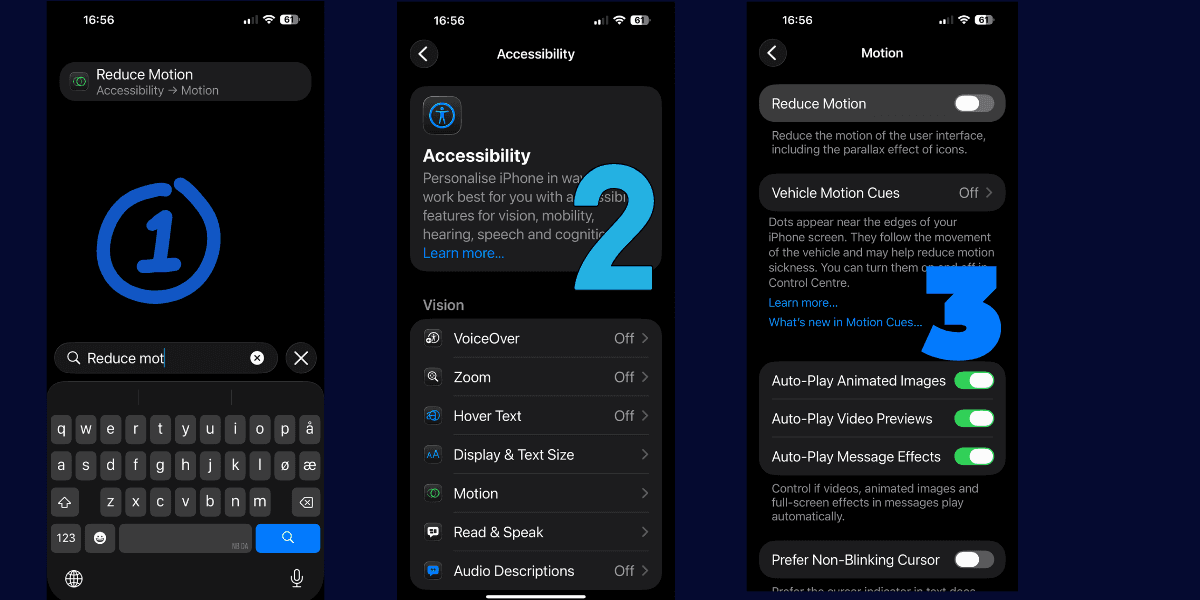
How to Enable Reduce Motion
Go to:
Settings > Accessibility > Motion > Reduce Motion
Turn the setting on.
You may also see related motion options in this menu, including controls for automatically playing animated images, video previews, and message effects. You do not need to disable every form of animation. Start with Reduce Motion and test whether you prefer the result.
What Reduce Motion Actually Does
When you tap an app icon, the app does not simply appear.
iOS displays a transition connecting the Home Screen to the app. Similar effects appear when opening folders, switching screens, viewing alerts, returning home, and navigating other parts of the interface.
These animations help make the operating system feel polished and visually coherent.
They also take time.
On a recent iPhone running smoothly, the delay may be barely noticeable. On an older phone—or one already affected by battery, storage, or temperature issues—the movement can make every interaction feel heavier than it really is.
Reduce Motion simplifies or replaces some of those visual transitions.
Apple has continued updating the setting for iOS 26, including improvements that make it more reliably reduce animations connected to the Liquid Glass interface.
Does Reduce Motion Make the Processor Faster?
No.
Reduce Motion does not:
Upgrade the processor
Add more memory
Improve battery health
Increase storage capacity
Repair damaged components
Increase internet speed
Guarantee faster app-loading times
It changes how the journey between two screens looks.
That can still make a meaningful difference.
Imagine two elevators that reach the same floor at exactly the same time. One opens its doors immediately. The other plays an elegant animation before allowing you to step out.
Technically, the journey took the same amount of time. In everyday use, the first elevator feels faster.
The same principle applies to interface animations.
When transitions are shorter or less visually elaborate, the device can feel as though it reacts more directly to each tap or swipe.
Perceived Speed Is Not Fake Speed
It is easy to dismiss perceived performance because it may not appear in benchmark results.
But users do not experience an iPhone through benchmark scores.
They experience it through hundreds of small interactions:
Opening Messages
Switching to the camera
Returning to the Home Screen
Searching through Settings
Opening a folder
Moving between apps
Reading notifications
Pulling down Control Center
If every interaction contains a transition that feels slightly too long, the entire device feels slow—even when the underlying task is completed normally.
Reducing that visual delay can improve the part of performance that users notice most often.
Who Is Most Likely to Notice a Difference?
Reduce Motion may be especially useful for:
Owners of older iPhone models
Users who prefer a direct, minimal interface
People who find zooming and morphing animations distracting
Users who feel that iOS 26’s Liquid Glass effects are too visually heavy
Anyone sensitive to onscreen motion
People who constantly open and close apps throughout the day
The difference may be less dramatic on a newer iPhone that already feels extremely responsive.
That is important to say honestly.
Reduce Motion is not a universal performance cure. It is a preference that can make the interface feel quicker for some users.
What Is the Compromise?
The interface may feel less fluid or cinematic.
You may notice less zooming, sliding, depth, and movement between elements. Some people interpret the simplified transitions as faster. Others feel that they remove part of what makes iOS look polished.
Neither reaction is wrong.
The best approach is to use Reduce Motion for a full day rather than switching it on and off several times within a minute. Once you become accustomed to the simpler transitions, decide whether the increased sense of responsiveness is worth the visual compromise.
3. Enable Offload Unused Apps and Give iOS Room to Work
Storage is the least exciting part of troubleshooting an iPhone.
It is also one of the most important.
A phone can have a capable processor, a healthy display, and current software while still behaving poorly because its storage is almost completely full.
Check Your Available Storage
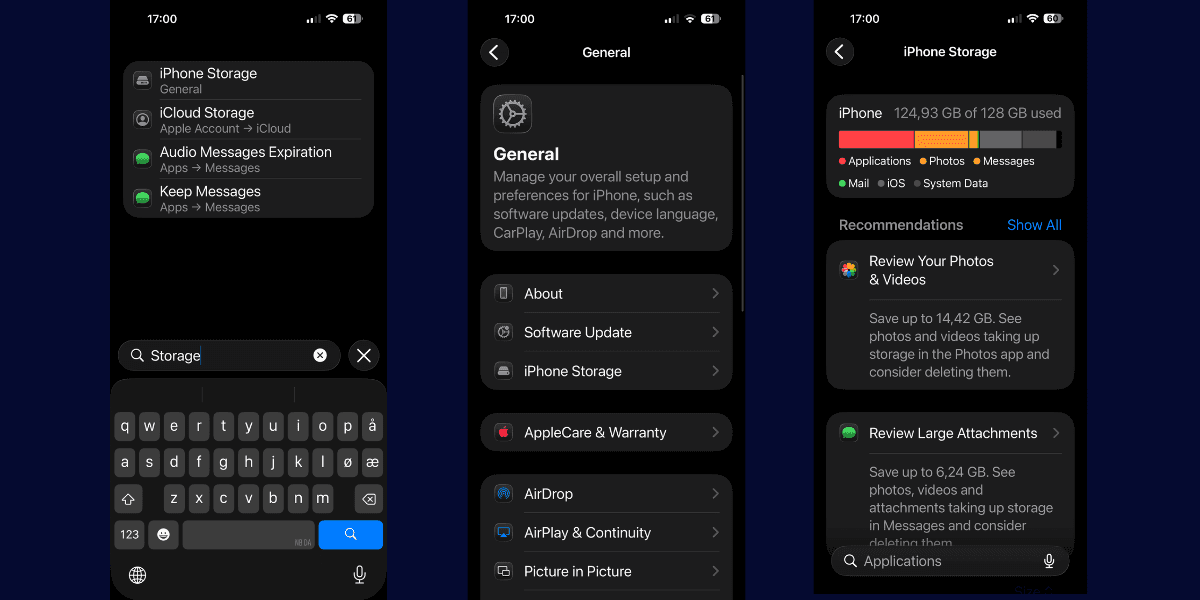
Go to:
Settings > General > iPhone Storage
The storage bar shows how much space is being used and how it is divided among apps, photographs, messages, media, system data, and other categories.
Below the storage bar, iOS may display recommendations for freeing space. You will also see a list of installed apps arranged according to how much storage they use.
Apple recommends maintaining at least 1GB of free storage to avoid performance problems. Apple also explains that iOS automatically manages storage during tasks such as app installations and updates by removing items that can be downloaded again or are no longer needed.
One gigabyte should be treated as a minimum rather than an ideal target.
A phone with only slightly more than 1GB available has very little flexibility for a large update, a long video recording, temporary editing files, offline media, or a storage-heavy app.
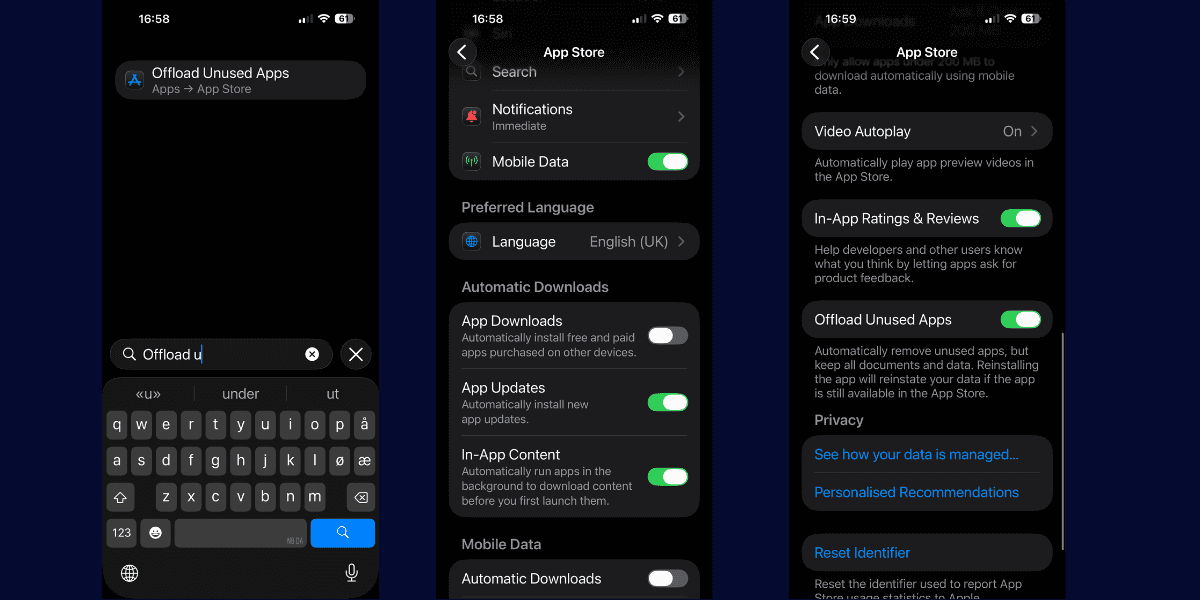
Enable Offload Unused Apps
On current versions of iOS, go to:
Settings > Apps > App Store > Offload Unused Apps
Turn the setting on.
Apple says that when storage is low, the iPhone can automatically remove unused apps while preserving their documents and data. The app icon remains on the Home Screen with a cloud symbol, and tapping the icon downloads the app again.
Offloading Is Not the Same as Deleting
This distinction is important.
When you offload an app:
The application itself is removed
Its documents and data are preserved
The icon can remain on the Home Screen
The app can be downloaded again later
When you delete an app:
The application is removed
Its associated local data may also be removed
You may need to sign in and configure it again
Unsynchronised information could potentially be lost
Offloading is therefore a safer first option for large apps you rarely use but may need again.
Which Apps Are Good Candidates for Offloading?
Look for apps that are large, replaceable, and rarely required at short notice.
Examples include:
Games you have not played for several months
Airline apps from previous trips
Hotel and travel-planning apps
Shopping apps installed for a single purchase
Video-editing software used for one project
Seasonal sports or event apps
School apps not needed during holidays
Work apps from an old employer
Streaming apps with replaceable content
Photo-editing tools you rarely open
Be more cautious with apps that contain important information stored only on the device.
Before removing or offloading an unfamiliar app, check whether its documents are backed up, synchronised, or stored in an online account.
Also remember that an offloaded app must be available from the App Store before it can be reinstalled. Avoid offloading something essential immediately before travelling or entering an area with unreliable internet access.
Why Low Storage Can Create So Many Problems
An iPhone does not use storage only for the photographs, videos, and apps you intentionally save.
The operating system and installed applications also need working room for:
Temporary files
Software updates
App updates
Photo and video processing
Downloaded attachments
Browser data
Cached media
Offline content
Exporting edited files
Synchronisation tasks
When very little free space remains, the phone has less flexibility to handle these tasks.
The result does not always look like obvious system-wide lag. Storage pressure can appear in several different ways:
The camera cannot record a video
A photograph takes longer to process or save
An iOS update will not install
An app update repeatedly fails
Editing software cannot export a project
Downloads stop before completing
Apps reload more frequently
Messages cannot download large attachments
The phone displays repeated storage warnings
This is why freeing storage can produce a more practical improvement than changing a cosmetic setting.
When Should You Upgrade
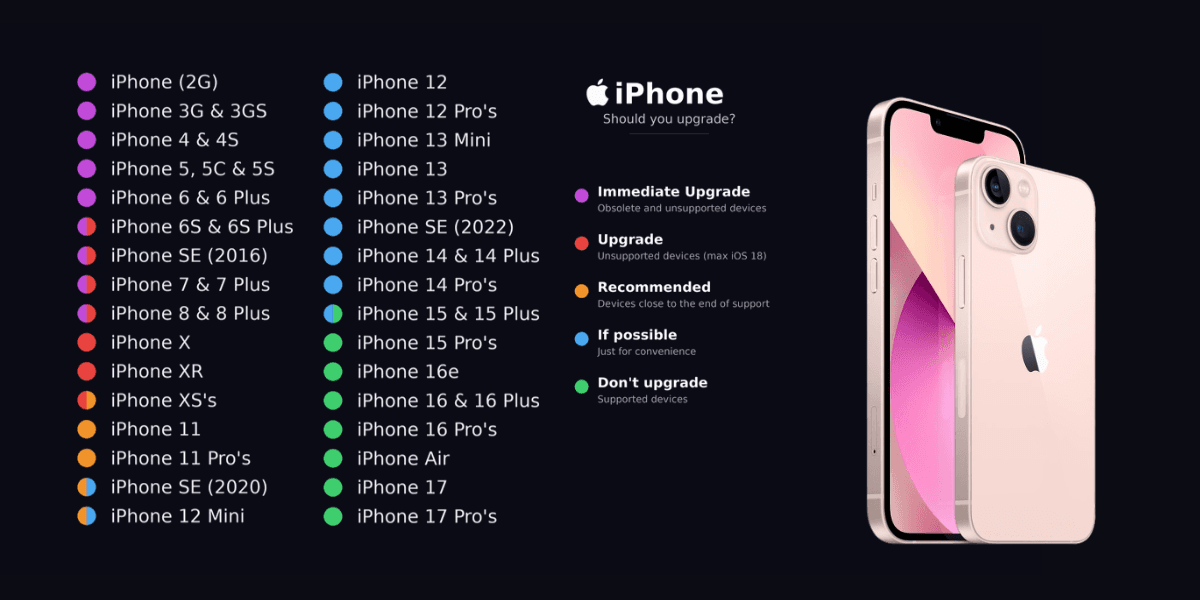
Even after adjusting settings, some iPhones will still feel slow because of how modern iOS updates interact with older hardware. In recent iOS versions, Apple has introduced more visually complex interfaces and effects (such as the newer “glass-like” design language and system-wide animations). These features are designed for newer chips and higher-performance displays, and on older models they can make the system feel heavier, less fluid, and more demanding than before.
This does not mean every update makes older phones unusable, but it does mean that performance expectations change over time. A device that felt fast on an earlier iOS version may feel noticeably slower after major visual updates, even if nothing is technically “broken.”
You should consider upgrading when:
New iOS updates consistently reduce responsiveness, even after optimising settings
The interface feels slow even with Low Power Mode off, storage cleared, and Reduce Motion enabled
The phone struggles with basic system navigation after major iOS redesigns
App compatibility begins to decline due to newer software requirements
The overall experience feels increasingly limited rather than just slightly slower
In these cases, the issue is no longer just settings or storage—it is the gap between modern software design and older hardware capability.
Why These Three Settings Work Better Together
Each setting addresses a different layer of the experience.
Low Power Mode Addresses Restrictions
Turning it off allows you to test the phone without deliberate battery-saving limitations.
Reduce Motion Addresses Visual Delay
It simplifies transitions so that the interface can feel more direct and responsive.
Offload Unused Apps Addresses Storage Pressure
It creates room for downloads, updates, temporary files, and ordinary system management.
Using all three provides a more complete test than changing one random setting and hoping for a dramatic transformation.
If the phone still feels slow afterward, you have also learned something useful: the cause is more likely to involve the battery, temperature, network, software, one specific app, or hardware.
Do Not Force-Close Every App
One of the most common iPhone habits is repeatedly opening the app switcher and swiping away every visible app.
It looks like cleaning.
It can have the opposite effect.
Apple explains that apps in a suspended state are not actively in use or taking up system resources in the same way as a currently running app. Background App Refresh may allow suspended apps to check for new content, but seeing an app in the switcher does not automatically mean it is consuming significant processing power.
Apple also warns that unnecessarily force-closing apps can make the device slower because the apps must reload their data when they are opened again.
Force-close an app when:
It has frozen
It no longer responds to touch
It repeatedly displays a blank screen
It is behaving abnormally
Apple or the app developer recommends restarting it
Do not use the app switcher as a daily task manager that must be emptied.
An app card is not the same as a computer program constantly running at full power.
Should You Turn Off Background App Refresh Too?
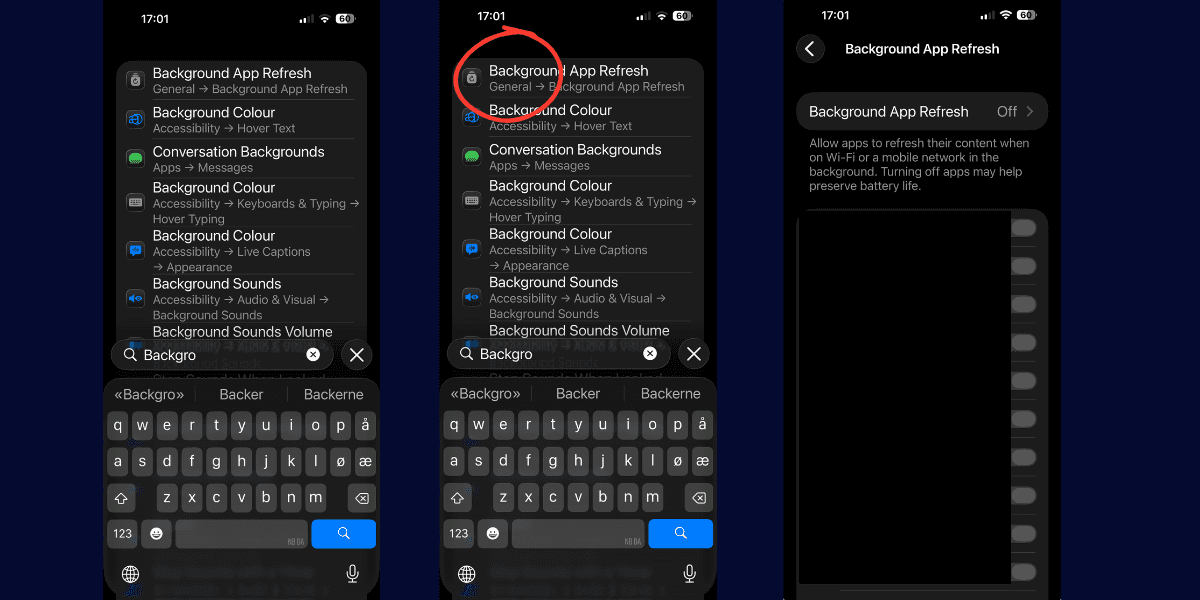
Background App Refresh allows supported apps to check for updates and retrieve new content while they are suspended.
You can find it under:
Settings > General > Background App Refresh
Apple explains that suspended apps are not actively in use, but Background App Refresh gives them an opportunity to check for updates and new content. Users can disable the feature entirely or control whether it uses WiFi only or both Wi-Fi and mobile data.
For most users, the best approach is not to disable Background App Refresh completely. Instead, review the apps individually and turn it off for services that do not need to collect new information before you open them.
Apps that may not need constant background access include:
Games you rarely play
Shopping and retailer apps
Restaurant and food-delivery apps
Travel apps from previous trips
Social media apps you do not need preloaded
News apps you rarely use
Apps installed for a single event or temporary purpose
Some apps may still benefit from background activity. Cloud-storage services, navigation tools, communication apps, authentication services, and productivity software may be more convenient when they can prepare information before being opened.
The easiest way to decide is to ask:
Would it matter if this app waited until I opened it before loading new content?
If the answer is no, disabling Background App Refresh for that app is unlikely to create a major inconvenience.
However, expectations should remain realistic. Modern versions of iOS already manage suspended apps carefully, so disabling this feature is not guaranteed to produce a dramatic increase in speed. It is better viewed as a way to reduce unnecessary background activity than as a complete solution for poor performance.
Low Power Mode also disables Background App Refresh while it is active. Therefore, users who regularly keep Low Power Mode enabled may already have limited background activity without realizing it.
Check Battery Health Before Blaming the Processor
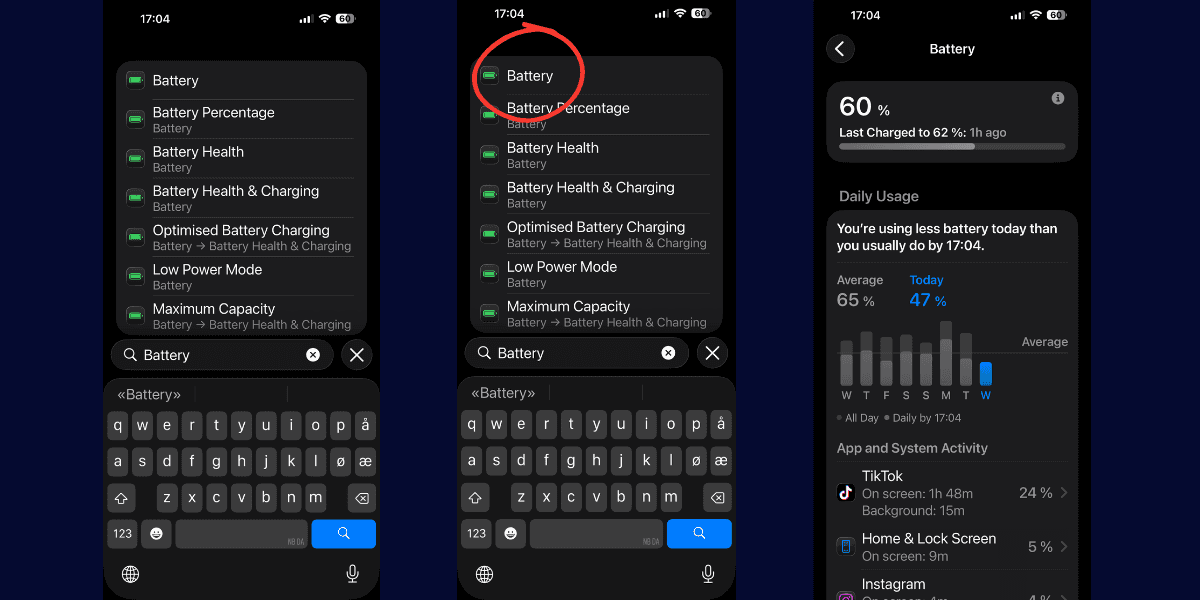
As you can see, its time for me to get a battery change. If changing the three main settings does not make a meaningful difference, the battery should be the next area you investigate.
Rechargeable lithium-ion batteries become less effective as they chemically age. Over time, they lose both total capacity and the ability to provide peak power during demanding tasks.
These are two different limitations.
Battery capacity determines how long the iPhone can operate between charges. Peak-power capability determines whether the battery can supply enough immediate energy when the processor, display, cameras, wireless connections, and other components require it.
When an aging battery cannot deliver the necessary power, the iPhone may shut down unexpectedly. To reduce the risk of repeated shutdowns, iOS can apply performance management.
This can make the phone feel slower even when the processor itself is still functional.
You can review battery information under:
Settings > Battery > Battery Health
On some iPhone models or versions of iOS, the menu may be called:
Settings > Battery > Battery Health & Charging
Look for:
A battery-service recommendation
Reduced maximum capacity
Information about peak-performance capability
Messages concerning unexpected shutdowns
Rapid battery drain
Performance becoming worse at low charge levels
Maximum capacity is useful, but it should not be treated as a perfect diagnosis by itself. Two iPhones showing the same percentage can behave differently depending on their age, temperature, usage history, and ability to deliver peak power.
A service warning is more important than focusing on one percentage alone.
When a Battery Replacement Makes More Sense
Replacing the battery may be more sensible than replacing the entire phone when:
The iPhone still receives important software updates
The screen, cameras, and charging system work properly
The current storage capacity remains sufficient
Battery life is the main source of frustration
Performance becomes worse as the charge level falls
Battery Health recommends service
You are otherwise satisfied with the device
A replacement battery will not improve camera quality, add new software features, or turn an older processor into a newer one.
What it may do is restore more reliable power delivery and reduce battery-related performance limitations.
For an otherwise functional iPhone, replacing one consumable component can offer much better value than purchasing an entirely new device.
Check Whether Temperature Is Affecting Performance
An iPhone may temporarily reduce its performance when it becomes too hot.
This is a protective response. Excessive heat can affect the battery and other internal components, so the system may reduce demanding activity until the device returns to a safer temperature. There has also been a problem with the newest update (ios 26.5.2) that causes the iphones to overheat because the liquid glass update has to many new features for the older Iphones to handle.
Heat-related performance problems can occur while:
Playing demanding games
Recording high-resolution video
Editing or exporting videos
Using navigation while charging
Restoring a large backup
Installing a major software update
Synchronising a large photo library
Using the phone in direct sunlight
Charging underneath bedding or other insulating materials
Running several demanding applications at once
A warm phone is not automatically damaged. Some heat is normal during charging, setup, gaming, video recording, and other intensive activities.
The warning sign is when the phone becomes unusually hot and performance drops at the same time.
When that happens:
Stop demanding applications.
Move the phone away from direct sunlight.
Disconnect it from charging when appropriate.
Temporarily remove a thick case if it is trapping heat.
Let the device return to a normal temperature naturally.
Do not place an overheated iPhone in a refrigerator or freezer. Rapid temperature changes can create additional problems, including condensation.
Cold conditions can also temporarily affect battery performance. If the iPhone behaves poorly after being used outside in freezing weather, allow it to warm gradually indoors before testing it again.
If performance returns to normal once the temperature stabilises, the problem was probably temporary rather than a sign that the processor is permanently failing.
Test the Internet Connection Separately
Many apparent performance problems are actually network problems.
Social media feeds, cloud photographs, streaming services, websites, navigation apps, and online games all depend on receiving information from another location. The iPhone may respond immediately to your input while the app waits for data.
This creates an important distinction:
A slow phone struggles with local actions.
A slow connection delays online content.
To determine which problem you have, test several actions that do not require internet access:
Open Settings
Type a paragraph in Notes
Use Calculator
Open a photograph stored locally
Move between Home Screen pages
Search for an installed app
Open Control Center
If these actions are responsive while websites and online apps remain slow, the processor is unlikely to be the main cause.
Try comparing:
Wi-Fi with mobile data
Your normal Wi-Fi with another network
The affected app with a different online service
The same website on another device
Moving closer to the router, restarting the router, or briefly enabling and disabling Airplane Mode may also help identify a connection problem.
A strong-looking signal symbol does not guarantee fast performance. Network congestion, interference, weak backhaul connections, overloaded routers, and temporary service problems can all create delays.
Replacing an iPhone will not fix an unreliable internet connection.
Check Whether the Problem Is Limited to One App
A system-wide slowdown affects many parts of the phone.
An app-specific problem affects one service while the rest of iOS continues to work normally.
This difference can save you from performing unnecessary troubleshooting.
When only one app is slow, try the following:
Close and reopen the affected app.
Check the App Store for an update.
Confirm that the iPhone is running a compatible version of iOS.
Restart the phone.
Check whether the service is experiencing an outage.
Review how much storage the app is using.
Reinstall the app only after confirming that important data is backed up or synchronised.
An app can become slow because of a software bug, damaged local data, an overloaded online service, an account issue, or poor compatibility with the current version of iOS.
Deleting and reinstalling may help, but it should not be the first step when the app contains important locally stored information.
A single malfunctioning app is not strong evidence that the entire phone needs replacing.
Make Sure the Touchscreen Is Actually Responding
A touchscreen problem can easily be mistaken for a performance problem.
Imagine tapping an app icon and receiving no response. You wait, tap again, and the app opens. It feels as though the phone took several seconds to react, but the first touch may never have been registered.
The same issue can affect typing, scrolling, gestures, and buttons near the edges of the screen.
Possible causes include:
Dirt or moisture on the display
A damaged or poorly fitted screen protector
A case interfering with the edges of the screen
Physical display damage
A temporary software issue
A low-quality replacement display
Problems following a drop or impact
Clean and dry the screen before testing it again. Remove accessories that may interfere with touch input and restart the phone.
Pay attention to whether the problem occurs in a particular area of the display. If one section regularly ignores taps or gestures, the issue may require repair rather than another settings adjustment.
No performance setting can compensate for a screen that does not consistently register input.
A Software Update Can Help—But It Can Also Create Temporary Slowdowns
Installing the latest compatible version of iOS can solve bugs, improve security, and restore compatibility with newer versions of apps.
However, an iPhone can temporarily feel slower immediately after a major update.
After installation, the system may continue performing tasks such as:
Indexing files
Analysing photographs
Updating search results
Rebuilding caches
Synchronising cloud information
Updating applications
Completing setup processes
These activities can increase background processing, temperature, and battery consumption.
This does not necessarily mean the update has permanently damaged performance.
After a major update, connect the phone to power and Wi-Fi and allow it to complete its background work. Use it normally before deciding whether performance has genuinely become worse.
If the problem continues, check:
Available storage
Battery health
Device temperature
App compatibility
Low Power Mode
Background App Refresh
Whether the issue affects the entire phone or only specific apps
Avoid judging an update only during the first few minutes after installation.
Use This Ten-Minute Test Before Spending Money
Changing many settings simultaneously makes it difficult to determine what actually solved the problem.
Instead, test the iPhone methodically.
Step 1: Record the Starting Point
Before making changes, note:
How much storage is available
Whether Low Power Mode is active
The current battery-health information
Whether the phone feels unusually warm
Which exact actions feel slow
Whether the problem occurs online, offline, or both
Avoid writing only that “the phone is slow.”
Choose clear symptoms, such as:
The camera takes too long to open
The keyboard appears late
Settings stutters while scrolling
Apps repeatedly reload
Photographs take too long to save
One app frequently freezes
Online content loads slowly
Step 2: Select Three Repeatable Actions
Choose three tasks you perform frequently.
For example:
Open the camera from the Lock Screen.
Launch Messages.
Switch between Safari and Photos.
Perform each action several times before changing anything.
Pay attention to the exact location of the delay. Is the transition slow? Does the app open but wait for online content? Does the screen ignore the first tap?
Step 3: Turn Off Low Power Mode
Repeat the same actions.
On supported models, pay attention to scrolling smoothness as well as loading times. A higher display refresh rate can make the phone feel more responsive even when the processor completes tasks at a similar speed.
Step 4: Turn On Reduce Motion
Perform the same test again.
Focus on whether moving between screens feels more direct. Do not expect Reduce Motion to make online content load faster or repair an app that is frozen.
Step 5: Review Storage
If the phone is nearly full, offload one or two large apps you no longer use regularly.
Remove replaceable downloads such as old films, podcast episodes, offline playlists, and unused editing files.
Recovering several gigabytes is more useful than deleting a handful of screenshots.
Step 6: Review Background App Refresh
Disable the feature for a small group of non-essential apps.
Choose services that do not need to retrieve information before you open them, such as old travel apps, games, and occasional shopping tools.
Step 7: Restart the iPhone
Restarting can clear a temporary software issue and gives you a clean point from which to repeat the test.
However, a restart is not a permanent repair. If the problem quickly returns, identify which app, activity, or condition triggers it.
Step 8: Compare the Results
Ask:
Does the interface feel more immediate?
Is scrolling smoother?
Does the keyboard respond normally?
Is the camera ready sooner?
Are apps remaining open rather than reloading?
Does the phone still become unusually hot?
Is the problem limited to online content?
Is one application responsible for most of the slowdown?
Did freeing storage solve update or download failures?
At the end of this test, you should have a clearer idea of whether the problem involves settings, storage, the battery, temperature, the network, or a specific application.
That information is far more useful than simply assuming the device has become too old.
Do Not Judge an iPhone Only by Its Age
An iPhone does not become useless on a particular birthday.
Its useful lifespan depends on:
Software and security support
Battery condition
Available storage
Physical condition
App compatibility
Repair costs
The owner’s actual requirements
Whether it remains reliable in everyday use
Two people can own the same iPhone model and reach completely different conclusions about whether it needs replacing.
Someone who mainly uses calls, messages, banking, navigation, photographs, and social media may remain satisfied for years.
Someone who records professional video, edits large files, plays demanding games, or depends on new artificial-intelligence features may reach the device’s limitations much sooner.
The right question is not simply:
How old is the phone?
It is:
Does this device still perform the tasks I need reliably enough to justify keeping it?
I explore this decision in more detail in our guide to how long electronics should really last—and when you should replace them.
Replacing technology too early wastes money and useful hardware. Keeping an unreliable device for too long can also cost time, create frustration, and eventually introduce compatibility or security concerns.
The best decision lies between those extremes.
Frequently Asked Questions
Does Background App Refresh slow down an iPhone?
Background App Refresh allows supported apps to retrieve updated information while they are suspended. Disabling it for unnecessary apps may reduce background activity, but the improvement can be subtle because iOS already manages suspended apps carefully.
Should Background App Refresh be turned off completely?
Usually not.
A selective approach allows important applications to remain updated while preventing games, occasional shopping services, unused travel apps, and other non-essential software from refreshing unnecessarily.
Does Reduce Motion genuinely speed up an iPhone?
Reduce Motion does not increase processor performance.
It simplifies certain animations and transitions, which can make the interface feel more immediate. The improvement mainly affects perceived responsiveness rather than raw computing power.
Can Low Power Mode make an iPhone feel slower?
Yes. Low Power Mode prioritises battery life by restricting certain features and background processes. On supported iPhones, it can also limit the display’s refresh rate, making scrolling and animations appear less fluid.
How much free storage should an iPhone have?
Apple recommends keeping at least 1GB available to avoid slowdowns. In practice, more space provides additional room for updates, downloads, recording video, processing photographs, and temporary system files.
Does offloading an app delete its documents?
Offloading removes the application while preserving its documents and data.
The app can generally be downloaded again by tapping its cloud-marked icon, provided it is still available from the App Store.
Should every app be force-closed regularly?
No.
Force-close an app when it is frozen or behaving abnormally. Routinely removing every app from the switcher can require those apps to reload their information when opened again.
Can a degraded battery reduce performance?
Yes.
An aging battery may become less capable of providing the peak power required by the iPhone. Performance management can be applied to reduce the likelihood of unexpected shutdowns.
Why is the iPhone slow only in online apps?
The problem may involve Wi-Fi, mobile data, network congestion, or the service itself rather than the iPhone’s processor.
Compare online services with offline apps before blaming the device.
Will restarting an iPhone make it faster?
Restarting can resolve a temporary software problem. It cannot repair a degraded battery, recover storage permanently, improve an unreliable network, or fix damaged hardware.
Final Verdict: Test the Phone Before Replacing It
A slow iPhone is not automatically a finished iPhone.
The three most useful settings address different sources of frustration:
Turning off Low Power Mode removes intentional battery-saving restrictions.
Enabling Reduce Motion reduces visual delays between actions and results.
Using Offload Unused Apps creates more storage headroom without immediately deleting personal app data.
Background App Refresh can also be reviewed selectively to reduce unnecessary activity from apps that do not need constant access.
If the phone remains slow after these changes, investigate the battery, temperature, network connection, touchscreen, software version, and individual apps.
At that point, the troubleshooting process has still been useful. You have moved beyond guessing and identified whether the problem is likely to require a battery replacement, an app fix, a network change, professional repair, or eventually a newer device.
The most important lesson is simple:
Do not replace an iPhone because it feels slow for a few moments. First remove the restrictions, create enough storage space, and test the phone under normal conditions.
A new iPhone should be the result of a clear need—not the first response to a problem that may be solved in Settings.
Keep reading


