Technology
NETGEAR AC1200 EX6120 Review: A Smart Ethernet Fix With One Major Speed Limit
The NETGEAR EX6120 can give a desktop PC, console, or streaming device a wired connection through your existing WiFi. After roughly three and a half years of personal use, it has proved simple and dependable, but its advertised 1.2 Gbps rating hides a major limitation that matters before you spend around $33.
By worth-the-cart.com
•
•
7 min read


A desktop PC without a WiFi card looks like a networking problem, but the solution does not necessarily have to go inside the computer. I solved it by plugging a small NETGEAR range extender into the wall, running an Ethernet cable from the extender to the PC, and letting the extender connect wirelessly to the router on another floor. No PCIe installation, no USB adapter sticking out of the case, and no long cable routed through the house.
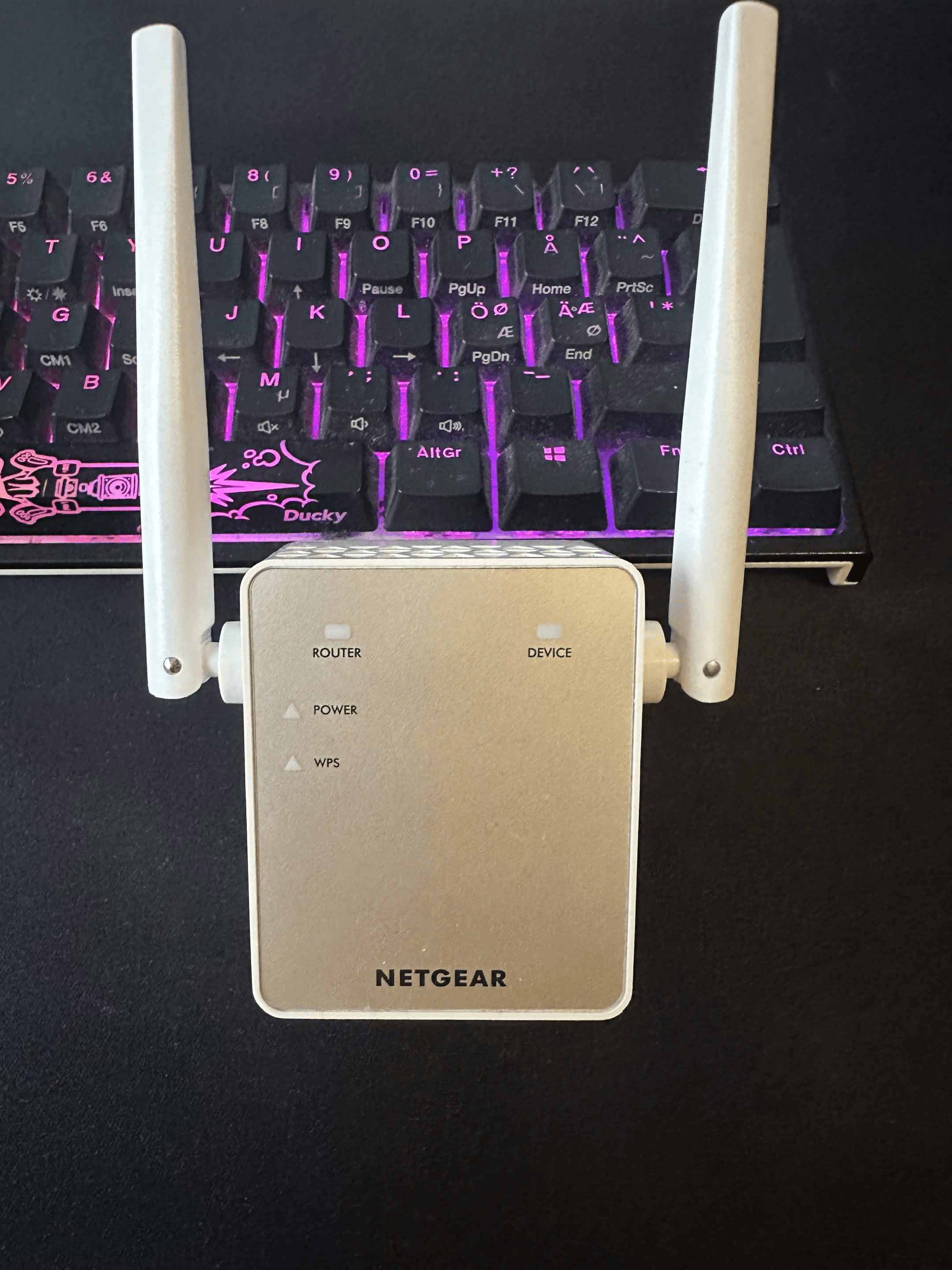
That less obvious use is the most interesting part of this NETGEAR AC1200 EX6120 review. The NETGEAR EX6120 WiFi Range Extender is marketed primarily as a way to improve WiFi coverage, but its Ethernet port also lets a wired device reach your existing network through WiFi. I have used mine with a desktop PC for roughly three and a half years, including gaming and streaming, and the connection has generally been stable enough that I rarely think about the extender at all.
There is, however, one specification every buyer needs to understand. NETGEAR advertises AC1200 performance, divided into as much as 300 Mbps on 2.4 GHz and 900 Mbps on 5 GHz, but the physical Ethernet port is only a 10/100 Mbps Fast Ethernet port. If your plan is to connect a PC, Xbox, PlayStation, or TV with a cable, that wired device cannot receive 900 Mbps through this extender. Its ceiling is 100 Mbps before normal networking overhead, regardless of the larger number printed on the product page.
That limit does not make the EX6120 useless. It does change who should consider buying one in 2026.
Is the NETGEAR EX6120 still useful?
The short answer is yes, but only for the right problem. The EX6120 remains useful when you need a simple way to bring a stable connection to a room with weak coverage or connect one Ethernet-only device to WiFi, and your real speed requirement is below 100 Mbps. That can be enough for ordinary online gaming, video streaming, browsing, and work, especially when consistency matters more than downloading enormous files as quickly as possible.
It is a harder recommendation for someone buying new networking equipment for a gigabit internet plan. The EX6120 is a WiFi 5 product built around technology documented as far back as 2015, its Ethernet port is not Gigabit, and NETGEAR now identifies the model as End of Service. A newer WiFi 6 adapter, extender, or mesh node may cost more, but it is a better match for modern security, faster broadband, and longer future support.
My own experience is therefore positive without being a universal buying recommendation. The EX6120 solved the specific problem I bought it for, took only a few minutes to configure, and stayed dependable for years. A product can perform its original job well while still becoming less attractive as a new purchase, and that distinction matters here.
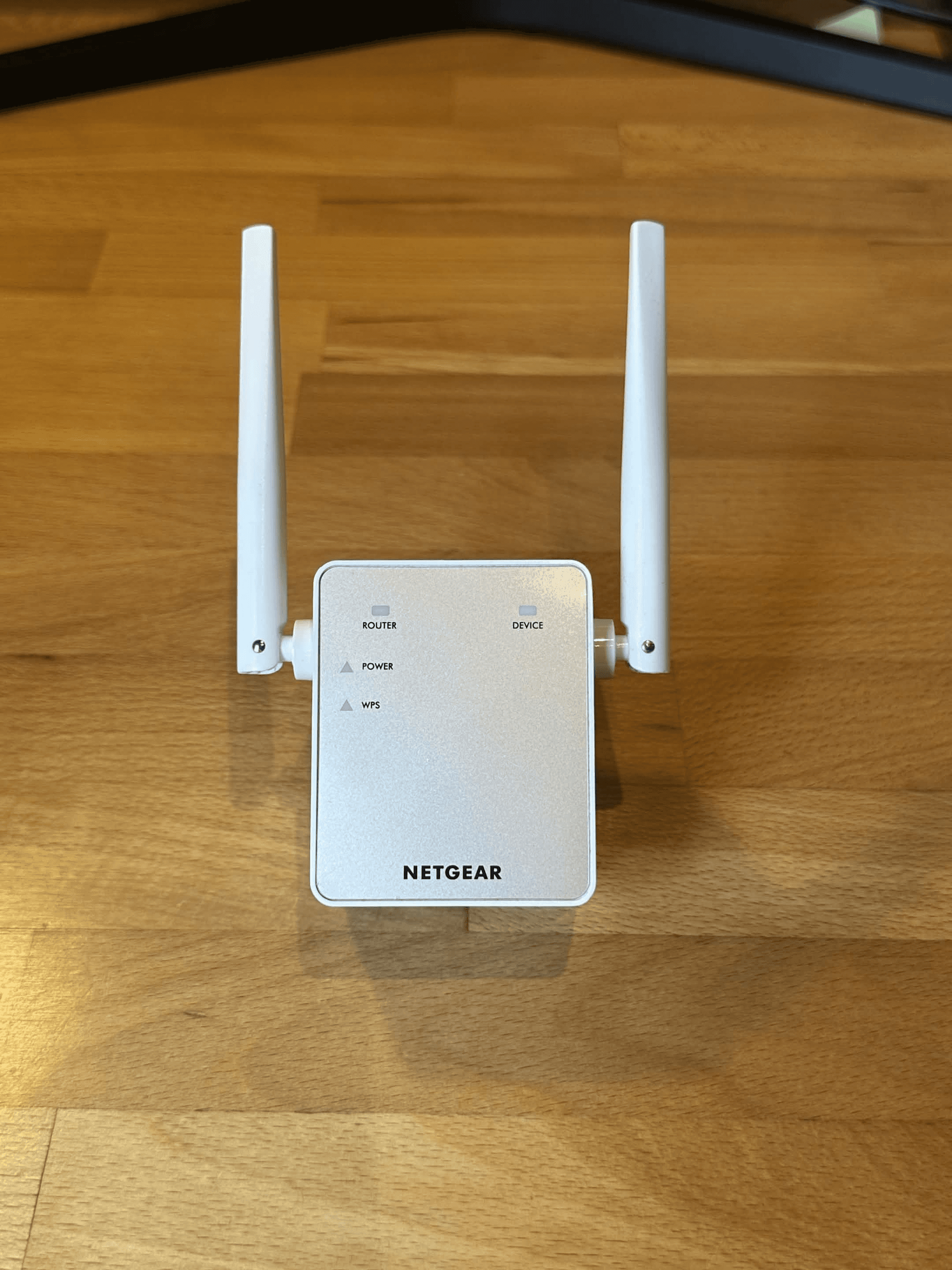
What does the NETGEAR EX6120 actually do?
In its normal extender mode, the EX6120 receives the wireless signal from an existing router and rebroadcasts it farther into the home. It does not create an internet connection by itself and it does not replace the router. Think of it as a relay positioned between the router and the room where the original signal is weak.
The Ethernet port adds another useful path. Once the extender is connected wirelessly to the router, you can attach a desktop PC, game console, Blu-ray player, smart TV, or another wired device to that port. The device behaves as though it has a wired network connection, while the EX6120 handles the wireless part of the journey back to the router.
This is sometimes called a wireless bridge or WiFi-to-Ethernet bridge. It is especially useful for a desktop computer with no WiFi card, because the computer only needs a working Ethernet port. The PC does not need to manage the wireless network itself, and you usually do not need to install WiFi adapter drivers.
The EX6120 also supports access-point mode, but that is a different arrangement. In access-point mode, an Ethernet cable runs from the router or an active wall network jack to the EX6120, and the extender creates a new WiFi hotspot from that wired connection. My use case was the reverse: the EX6120 connected to the router wirelessly and passed the connection to my PC through Ethernet.
Feature or claim | What it means in normal use |
|---|---|
AC1200 | A combined WiFi class, not 1,200 Mbps delivered to one device |
Up to 300 Mbps on 2.4 GHz | Longer reach and better wall penetration, but lower maximum link speed |
Up to 900 Mbps on 5 GHz | Faster theoretical WiFi link under suitable conditions, but shorter range |
One 10/100 Ethernet port | A wired PC or console is limited to 100 Mbps before overhead |
Extender mode | The EX6120 connects to the router over WiFi and repeats the network |
Access-point mode | The EX6120 receives Ethernet from the router and creates WiFi |
Why I used it instead of installing a WiFi card
I originally needed internet on a desktop PC that did not have a WiFi card. Installing a PCIe card would have meant opening the computer, checking compatibility, attaching antennas, and potentially dealing with drivers. A USB WiFi adapter would have been another reasonable solution, but I also liked the idea of using Ethernet at the PC and placing the wireless receiver away from the metal case.
The EX6120 made that possible with equipment I already understood. I plugged it into an outlet, connected an Ethernet cable to the PC, opened NETGEAR’s setup page, selected the home WiFi network, and entered the WiFi password. The entire setup took approximately three to four minutes, with no meaningful problems along the way.
This approach can also make sense for consoles. An Xbox or PlayStation already has WiFi, but its location may produce an unstable signal. Placing the extender where it can still receive a good link from the router, then connecting the console through Ethernet, can remove the console’s own antenna and placement from part of the equation. It is not equivalent to running Ethernet all the way to the router because the backhaul remains wireless, but it can be more stable than asking a console hidden behind a TV or inside a cabinet to maintain the connection itself.
The same logic applies to a smart TV or streaming box. If the device has a mediocre wireless radio but a reliable Ethernet port, the EX6120 can take over the wireless connection. The important limitation remains the same: only one wired device can use the single Ethernet port directly, and that port is capped at 100 Mbps.
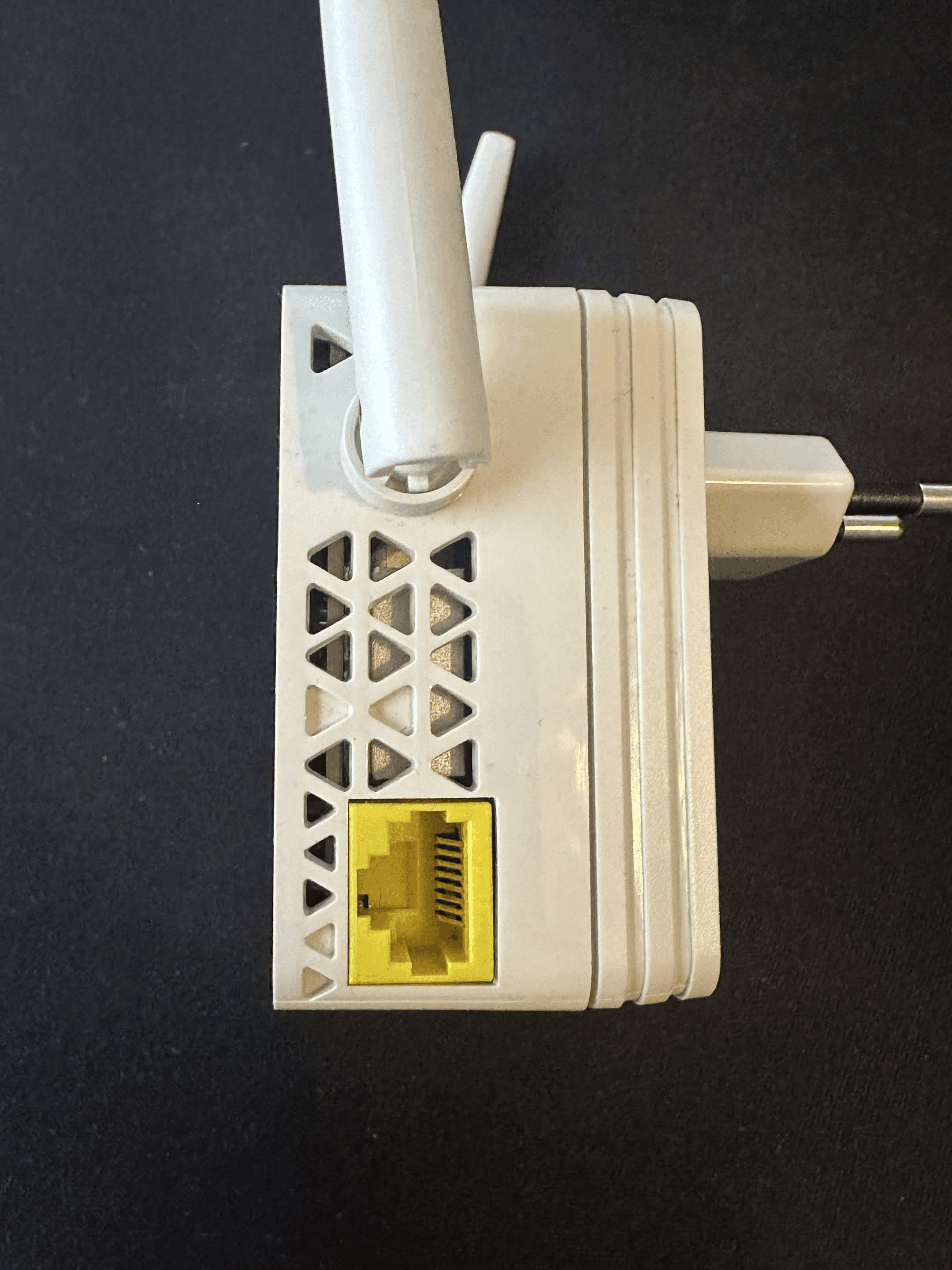
NETGEAR EX6120 setup: what the process was like
The browser-based setup is simple enough for someone who has never configured a range extender. In my case, the device powered on after being plugged into the wall, the PC was connected to the extender with an Ethernet cable, and NETGEAR’s guided page handled the rest. I logged in, chose the option to connect to WiFi, selected my home network, and entered its password.
The exact screens can vary with firmware and whether you start through WiFi or Ethernet, but the basic process is:
Plug the EX6120 into an outlet reasonably close to the router for the initial setup.
Wait for the Power LED to turn green. If it does not, press the power button.
Connect your PC to the extender with Ethernet, or connect a phone or computer to the temporary
NETGEAR_EXTwireless network.Open a browser and visit
mywifiext.netif the setup page does not appear automatically.Create or enter the requested extender login credentials.
Choose the existing 2.4 GHz and/or 5 GHz home network and enter the correct WiFi password.
Allow the settings to apply, then move the extender to the intended outlet.
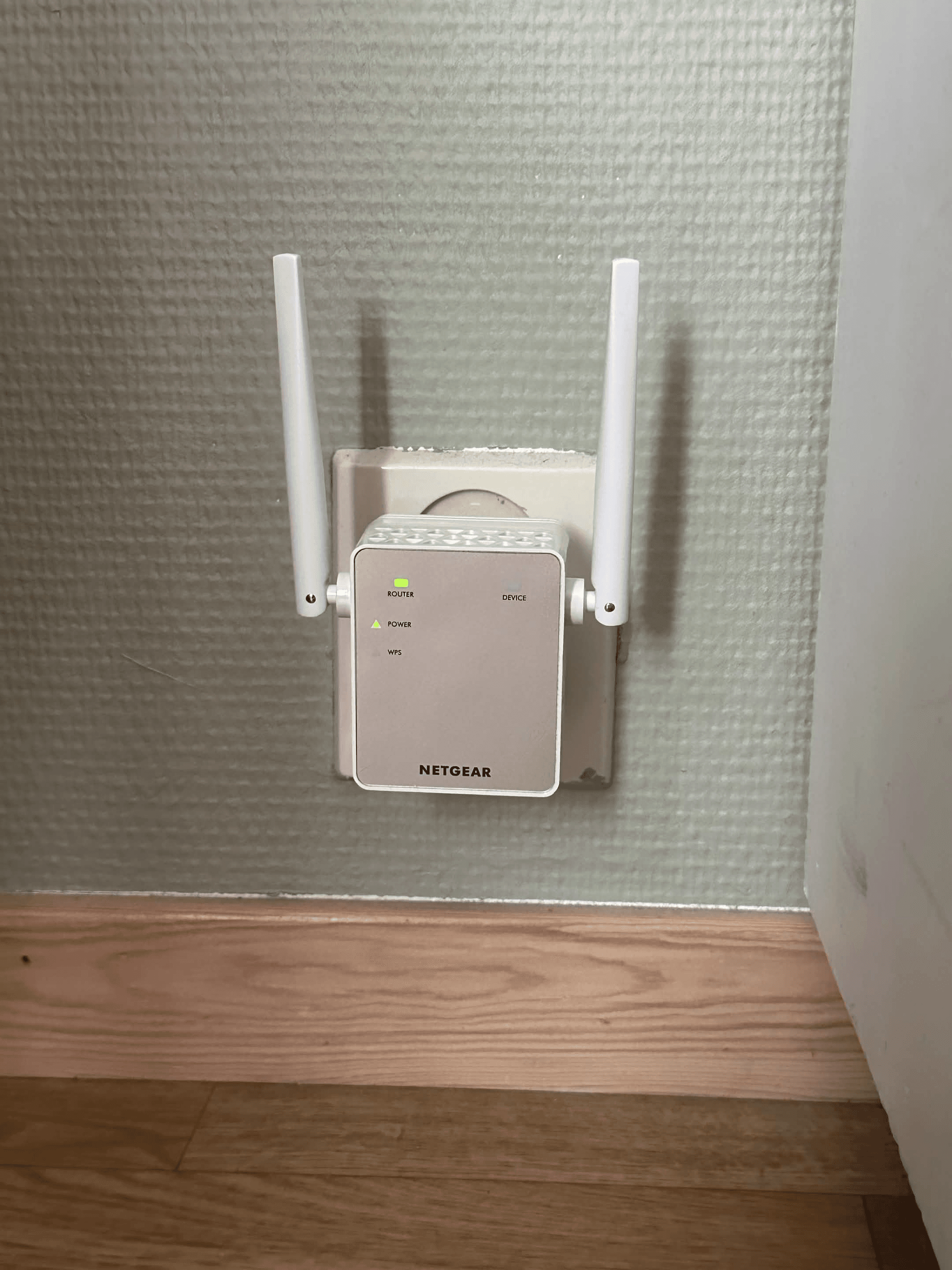
Check the Router Link LED. Green indicates the strongest category of connection, amber is usable, and red means the extender should be moved closer to the router.
Connect the PC, console, or other wired device to the Ethernet port and confirm that it receives internet access.
WPS provides a shorter alternative when both the router and extender support it. The button says WPS, not “VPS”: press WPS on the extender and then activate WPS on the router within the time window described by the router. Browser setup is often more informative, however, because it lets you see the available bands and verify exactly which network you are joining.
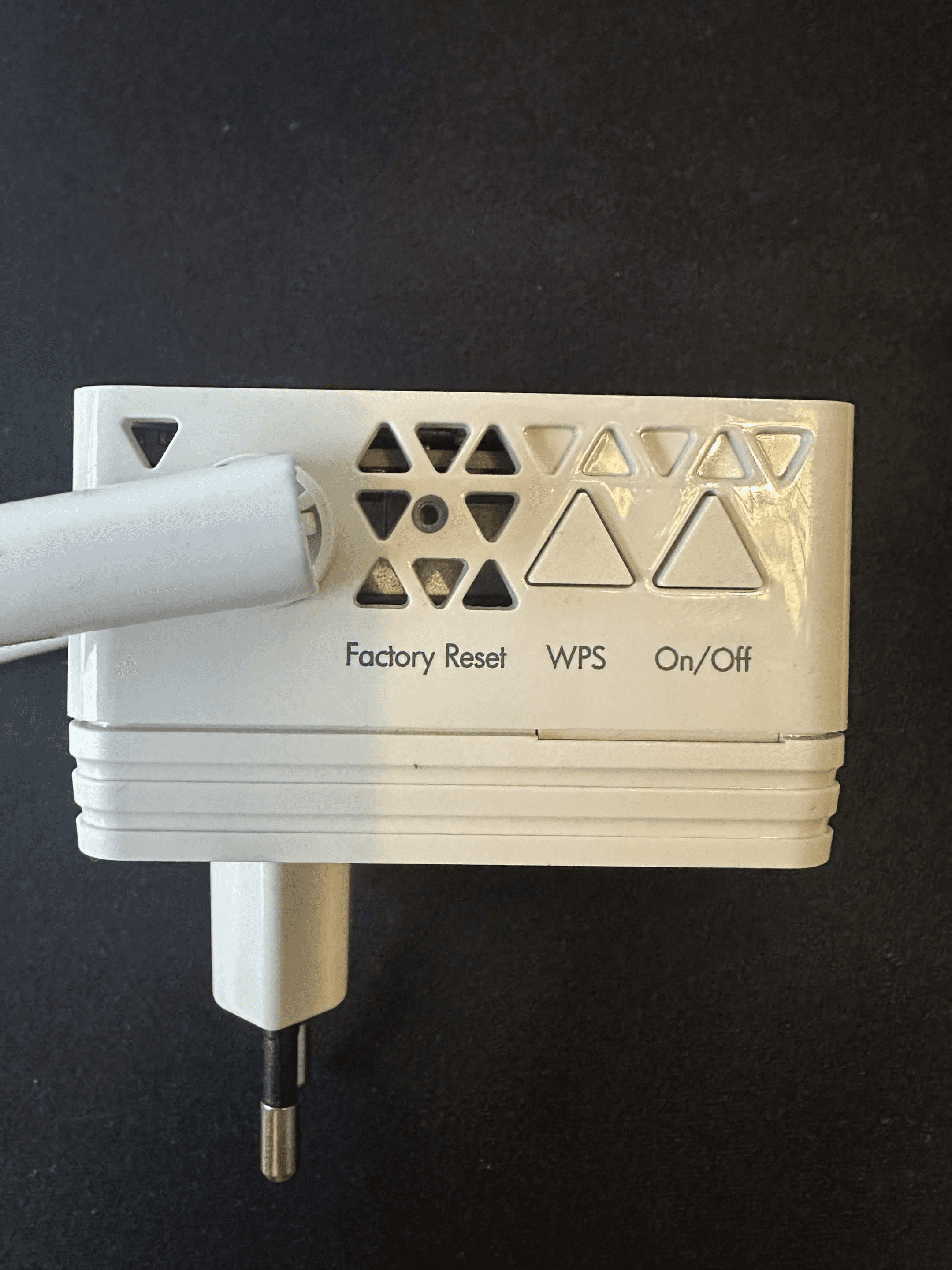
The instruction screens matter more than technical knowledge. If you read each prompt and use the correct WiFi password, the process is difficult to get seriously wrong. My installation took only a few minutes and did not require a call to support, an app, or a CD.
My experience after three and a half years
Long-term reliability has been the strongest part of my EX6120 experience. I have used it for approximately three and a half years and have not had to build a routine around restarting it. There was one occasion when I disconnected and reconnected the Ethernet cable at the PC, but it was a minor interruption rather than a recurring fault.
The placement was not an ideal same-room test. My router was in the second story of the home, while the extender was down roughly 14 stairs and another room away in the living area. The straight-line distance is difficult to estimate precisely, and floors, walls, furniture, and building materials matter more than counting steps, but the important point is that the router and extender were separated by both distance and a floor.
Despite that, the connection felt strong in normal use. I remember seeing gaming ping around 10–15 milliseconds, and the network was good enough for gaming, streaming, and everyday computer use. That is personal experience from one home, not a controlled benchmark: the game server, internet provider, router, local congestion, and house construction all affect latency. Still, it shows that a range extender does not automatically create unusable gaming delay when it is placed well and has a solid 5 GHz link.
I also saw the 5 GHz connection associated with a figure around 900 Mbps. This is where the product’s labeling can be confusing. The 900 Mbps figure describes the maximum advertised 5 GHz wireless rate; it cannot be the end-to-end wired download speed on a PC connected through the EX6120’s 100 Mbps Ethernet port. The low ping is a plausible and useful real-world observation, while any 900 Mbps number shown by the extender should be treated as a WiFi link-rate or product-class figure rather than wired throughput.
How I Use the EX6120 in My Home Today
Although I originally used the EX6120’s Ethernet port to connect my desktop PC, I now find it more useful as a traditional wireless range extender. My router is upstairs, while the extender sits downstairs and another room away, where it helps carry a stronger WiFi signal into an area that would otherwise have weaker coverage. Connecting through the EX6120’s 5 GHz wireless network also avoids the 100 Mbps limit of its Fast Ethernet port, making this the more practical way to use it if your devices already support WiFi. If your main problem is a desktop PC without built-in WiFi, a modern USB adapter may be the better option because it can provide a faster direct connection without the EX6120’s wired bottleneck. You can read our TP-Link Archer TX20U Plus review for gaming to see how that type of adapter compares in real-world PC use.
The biggest catch: 900 Mbps WiFi, but only 100 Mbps Ethernet
The EX6120 is advertised as AC1200 because NETGEAR adds the maximum link rates of its two bands: 300 Mbps on 2.4 GHz and 900 Mbps on 5 GHz. Your device does not combine those numbers into a 1,200 Mbps internet connection. They represent separate theoretical wireless links measured under favorable conditions, before distance, interference, retransmissions, protocol overhead, device limits, and your internet plan reduce the result.
For the specific no-WiFi-card use case, the Ethernet port is the decisive bottleneck. NETGEAR specifies one 10/100 Mbps Fast Ethernet port, which means a connected desktop PC or console tops out at a 100 Mbps link. Real file-transfer and internet-test results will generally be somewhat lower because the full 100 Mbps is not available as application data.
That is not a major problem during many online multiplayer sessions. Xbox’s own network guidance lists a minimum of 3 Mbps download, 0.5 Mbps upload, and latency below 150 ms for online gaming. Those are minimums rather than a promise of a great experience, but they demonstrate why a stable sub-100 Mbps connection can still play games perfectly well. Ping, jitter, packet loss, and temporary interruptions often become more noticeable during actual play than the difference between 100 and 900 Mbps.
Large downloads tell a different story. At a perfect 100 Mbps, downloading a 100 GB game would take approximately 8,000 seconds, or two hours and 13 minutes. That calculation assumes the connection sustains the full port rate with no overhead, so reality will usually take longer. At a genuine 900 Mbps, the same theoretical download would take about 15 minutes, which shows why confusing link-rate marketing with the Ethernet limit can create real disappointment.
The practical conclusion is simple: the EX6120 can be fast enough to play the game, but it may be slow when downloading the game. If your broadband plan is 50 or 100 Mbps, the Ethernet limit may barely matter. If you pay for 500 Mbps, 1 Gbps, or more and want that speed at the PC, this is the wrong wired bridge.
Should you use 2.4 GHz or 5 GHz?
Use 5 GHz when the extender can maintain a strong connection to the router; use 2.4 GHz when distance or dense walls make the 5 GHz link unreliable. The faster band is not automatically better if it repeatedly loses packets or drops to a weak signal.
In my setup, 5 GHz was the preferred option because it offered the stronger performance for gaming and streaming despite the router being on another floor. That result will not transfer perfectly to every house. Wooden floors and ordinary drywall are much easier for WiFi than concrete, metal, underfloor heating materials, mirrors, or dense masonry.
The EX6120’s LEDs provide a more useful placement signal than guessing by distance. If the Router Link LED is green or amber, test the connection where you intend to use it. If it is red or off, move the extender closer to the router rather than placing it directly inside the dead zone. A range extender cannot repeat a strong connection if it receives only a weak and unstable one.
There is also a bandwidth-versus-reach trade-off. The 2.4 GHz network has a lower advertised maximum of 300 Mbps but generally travels farther and penetrates obstacles better. The 5 GHz network has an advertised maximum of 900 Mbps and usually faces less congestion, but it weakens more rapidly through distance and structure. For an Ethernet-connected device, either band can still run into the 100 Mbps port ceiling, so stability should decide the choice once both are capable of filling that port.
Is the NETGEAR EX6120 good for gaming?
The EX6120 can be good for ordinary online gaming when it solves an unstable WiFi connection and is placed where it receives a strong link from the router. My remembered 10–15 ms ping and years of generally trouble-free use made it perfectly practical for my desktop PC. The wired connection between the extender and PC also avoids depending on a missing or weak PC WiFi adapter.
Calling it a “wired gaming connection” requires one qualification. Only the short section from the EX6120 to the PC or console is Ethernet; traffic still travels wirelessly from the extender to the router. It will not provide the same predictability as a direct Ethernet cable from the gaming device to the router. Interference, crowded channels, and a weak router link can still affect play.
Raw download speed is not the main requirement once an online match has started. A consistent 50 or 100 Mbps connection with low packet loss can feel far better than a faster connection that suffers latency spikes. The EX6120’s 100 Mbps port therefore does not automatically disqualify it for multiplayer gaming, but the model is a poor fit for users who frequently download 100 GB releases and expect to use a gigabit internet plan fully.
Cloud gaming and Remote Play deserve additional caution because they continuously stream interactive video. PlayStation recommends at least 15 Mbps for a better Remote Play experience, and Xbox states that latency below 60 ms is optimal for its remote-play experience. The EX6120 has enough nominal bandwidth for those figures, but placement and network stability matter heavily. Run a test at the exact time and location where you normally play; a quiet morning test does not reveal congestion during a busy evening.
For competitive players, the decision is stricter. A direct Ethernet run, Ethernet over properly installed home networking, or a high-quality modern access point is preferable when every latency spike matters. The EX6120 is a practical workaround, not a substitute for purpose-built wired infrastructure.
Is it good enough for streaming?
For one streaming device, the 100 Mbps Ethernet limit is normally generous. Netflix currently recommends 5 Mbps for Full HD and 15 Mbps for 4K, so the EX6120’s wired ceiling can theoretically support several times the bandwidth required for one 4K stream. Stability and the quality of the wireless backhaul remain the real variables.
This does not mean the extender can guarantee 4K playback in every room. If the router-to-extender connection falls below the streaming requirement or experiences interference, the Ethernet cable to the TV cannot repair that weak wireless backhaul. Place the extender where it still receives a healthy router signal, rather than beside the TV simply because that is where the dead zone begins.
The device count claim also deserves perspective. A listing may advertise coverage for many devices, but every connected device shares airtime and the backhaul to the router. The EX6120 makes the most sense as a focused solution for a weak room or a small number of devices, not as the core of a heavily connected modern smart home.
The limitations that matter in 2026
The 100 Mbps Ethernet port is the most visible limitation, but it is not the only reason to think carefully before buying the EX6120 new.
First, it uses WiFi 5 rather than WiFi 6 or WiFi 7. WiFi 5 is still compatible with many routers and devices, and an older standard does not suddenly stop functioning. Newer equipment can offer better efficiency in busy networks, modern security support, and faster wired ports, however, making it more suitable for households with high-speed broadband and many active devices.
Second, NETGEAR lists WPA/WPA2-PSK and WEP in the EX6120 specifications, not WPA3. WEP should not be used, and an extender that lacks WPA3 may force a newer router to run WPA2 or a WPA2/WPA3 mixed mode for compatibility. That may be acceptable in an existing home network using WPA2, but shoppers specifically upgrading for current security standards should look at newer hardware.
Third, support status has changed. NETGEAR released firmware version 1.0.0.72 in January 2026 to address security vulnerabilities, but a June 2026 NETGEAR security advisory lists the EX6120 as End of Service (EOS). NETGEAR’s lifecycle policy says EOS products no longer receive firmware updates, including important security updates. Existing owners should install the latest available firmware, but buyers should not assume that future vulnerabilities will be patched.
That creates an unusual situation: the EX6120 was still listed for sale by NETGEAR for $34.99 when this article was researched in August 2026, even though NETGEAR’s security material identifies it as EOS. A low price does not erase the lifecycle issue. For a new purchase, support horizon can matter more than saving a small amount upfront.
Fourth, the extender does not turn the home into a modern managed mesh system. Depending on configuration, devices may see an extended network name and may not move between the router and extender as smoothly as they would across a coordinated mesh. This matters less for a stationary desktop connected by Ethernet, which is why the product suited my use particularly well.
Finally, outlet placement can be awkward. The EX6120 is compact, but its external antennas and wall-plug design still require an outlet in the right physical location. An outlet hidden behind a metal appliance, low cabinet, entertainment center, or thick structural wall may be convenient for power but poor for radio performance.
EX6120 versus the alternatives
The best alternative depends on whether your real problem is missing PC WiFi, weak room coverage, or both. Buying a range extender solely because a desktop lacks a WiFi card is not always the cheapest or fastest route.
USB WiFi adapter
A USB WiFi adapter is the simplest direct alternative. It connects to the PC, often costs about the same as an inexpensive extender, and newer models may support WiFi 6 and speeds beyond 100 Mbps. It also avoids occupying a wall outlet.
The trade-offs are antenna position, driver quality, and USB placement. An adapter plugged behind a metal desktop case under a desk can receive a worse signal than an extender positioned higher and farther away. A model with an external antenna or desktop cradle can reduce that problem.
PCIe WiFi card
A PCIe card is usually the stronger long-term desktop solution when the PC has a free slot and you are comfortable opening the case. Modern cards can provide WiFi 6 or WiFi 6E, Bluetooth, better antennas, and much higher throughput than the EX6120’s Ethernet port. The downside is installation effort and compatibility checking.
Newer WiFi extender or mesh node
A modern extender with WiFi 6, WPA3, and a Gigabit Ethernet port is a better fit for fast broadband. A mesh system becomes more attractive when several rooms have weak coverage, users move throughout the home, and seamless roaming matters. Both alternatives cost more than an EX6120, but they solve a broader problem and are more likely to receive ongoing support.
Direct Ethernet
Running Ethernet from the router to the PC remains the strongest option for consistent speed and latency. It can be inconvenient or impossible in a rented home, across floors, or through finished walls, but it removes the wireless backhaul entirely. If a safe cable route already exists, spending money on an extender may be unnecessary.
Keep using the EX6120 you already own
Existing owners do not need to replace a stable EX6120 merely because a faster product exists. If your internet plan is 100 Mbps or slower, gaming remains smooth, the connection is reliable, and the latest firmware is installed, the practical gain from replacement may be small. The EOS security status is still a reason to plan an eventual upgrade rather than treating the device as permanent infrastructure.
A quick decision shortcut
The EX6120 makes the most sense if all of the following are true:
You need to connect one PC, console, TV, or player through Ethernet, or improve coverage in one limited area.
A 100 Mbps wired ceiling is enough for your actual use.
Your router supports a compatible WPA2 configuration.
You are comfortable buying or continuing to use an older WiFi 5 product.
The extender can be placed where it receives a green or amber router-link signal.
Choose a newer solution if any of these are true:
You want hundreds of megabits or gigabit-class speed at the wired device.
You are building a network around WiFi 6, WiFi 7, or WPA3.
You need ongoing firmware and security support.
You have several dead zones or many devices and would benefit from mesh WiFi.
A modern USB or PCIe WiFi adapter would solve the PC problem more directly.
At around $33, the EX6120 is inexpensive, but price should be judged against the task. Paying $33 for a reliable bridge that solves a difficult placement problem can be sensible. Paying $33 for a device that immediately prevents a gigabit PC from exceeding 100 Mbps is a false economy.
Troubleshooting the most common problems
If the EX6120 performs poorly, placement should be the first suspect. Move it closer to the router until the Router Link LED is green or amber. Putting an extender at the farthest edge of the dead zone feels logical, but it leaves the device with too little signal to repeat effectively.
If the setup page does not appear, connect directly to the extender, open a browser, and enter mywifiext.net. Make sure the computer is using automatic IP addressing through DHCP. When setting up through Ethernet on a PC that also has WiFi, temporarily disabling the PC’s own WiFi can prevent the browser from sending the setup traffic through the wrong network connection.
If 5 GHz is unstable, compare it with 2.4 GHz rather than assuming the extender is defective. The lower-frequency band may give up speed but gain enough signal quality to reduce dropouts. For an Ethernet device limited to 100 Mbps, a stable 2.4 GHz connection can sometimes be more useful than a weak 5 GHz link with a larger advertised number.
If the wired device suddenly loses internet, check the Ethernet cable at both ends and reconnect it. That simple step resolved the only minor interruption I remember during years of use. Test another cable before resetting the extender, because a damaged clip or cable is easier to fix than rebuilding the network configuration.
Existing owners should also check the installed firmware. NETGEAR’s support page lists version 1.0.0.72, released in January 2026, as the latest version available during this research. Because the model is now identified as End of Service, the latest available update is important, but it should not be mistaken for a promise of future fixes.
Use a factory reset only after simpler steps fail, because it erases the extender configuration. NETGEAR’s guide says to hold the Factory Reset button with a pointed object for at least five seconds until the Power LED turns amber, then wait for the extender to reboot. You will need to repeat the network setup afterward.
Final takeaway from this NETGEAR AC1200 EX6120 review
The NETGEAR EX6120 did exactly what I needed: it gave a desktop PC without a WiFi card a simple Ethernet connection to a router located on another floor. Setup took roughly three to four minutes, remembered gaming latency was around 10–15 ms, and the extender required almost no attention over approximately three and a half years. As a personal problem-solver, it has been easy to appreciate.
The advertised speed needs to be understood before anyone repeats that experience. The 900 Mbps 5 GHz figure is a wireless link rating, while the Ethernet port used by a PC or console is capped at 100 Mbps. That is enough for many gaming and streaming sessions, but it dramatically slows large downloads and wastes most of a fast broadband plan.
Existing owners with stable performance can keep using the EX6120 while installing the latest available firmware and planning a future upgrade. A new buyer who specifically needs a cheap sub-100 Mbps WiFi-to-Ethernet bridge may still find it useful at around $33. Most buyers building a network in 2026, however, should compare it with a supported WiFi 6 device that includes WPA3 and Gigabit Ethernet before deciding that the lowest purchase price is the best value.
FAQ
Can the NETGEAR EX6120 give a PC WiFi without a WiFi card?
Yes. After the EX6120 connects wirelessly to your router, connect its Ethernet port to the PC. The computer can then access the network through Ethernet even if it does not have a WiFi card. The wired connection is limited to 100 Mbps because the extender uses Fast Ethernet rather than Gigabit Ethernet.
Is the NETGEAR EX6120 good for PlayStation or Xbox?
It can provide a stable connection for ordinary online gaming when the extender has a strong link to the router. It may also help when a console sits in a poor WiFi position. The 100 Mbps Ethernet limit is usually sufficient during gameplay, but large game downloads will be much slower than on a modern Gigabit connection.
Does the EX6120 really deliver 1.2 Gbps?
Not to one device. AC1200 combines advertised maximum link rates of 300 Mbps on 2.4 GHz and 900 Mbps on 5 GHz. Real throughput is lower, and a device connected to the Ethernet port is capped at 100 Mbps.
Should I connect the EX6120 to 2.4 GHz or 5 GHz?
Use 5 GHz when the router link remains strong because it provides the higher potential speed and often less interference. Use 2.4 GHz when floors, walls, or distance make 5 GHz unstable. The Router Link LED and real tests at the intended location are more useful than choosing by specification alone.
Does the NETGEAR EX6120 support WPA3?
NETGEAR’s published specifications list WPA/WPA2-PSK and WEP, not WPA3. Buyers who require WPA3 should choose newer hardware. Do not use WEP merely for compatibility because it is an obsolete and weak security option.
Is the NETGEAR EX6120 still supported?
NETGEAR released firmware version 1.0.0.72 in January 2026, but a June 2026 security advisory identifies the EX6120 as End of Service. NETGEAR says EOS products no longer receive firmware updates, including security updates, so future support should not be expected.
Popular Posts
tech Reviews
GOverlay Plus 7.8-Inch Review: The Little Screen That Brought My Gaming Setup Together
Tech Reviews
UNIHIKER K10 Review: The $28.90 AI Board That Can Become Almost Anything
Gaming
What We Know About the Guy Behind the GTA 6 Leak: CyberLeek
Home Servers
ZimaBlade Review: Is This Tiny Home Server Worth It?
Keep reading


