Gaming Keyboards
·
1 products compared
Last updated
8.2
⭐ Best Value Pick
ducky one 2 mini
Ducky One 2 Mini Review
Affiliate disclosure: WorthTheCart may earn a commission from qualifying purchases. This does not affect our editorial opinions, rankings, or recommendations.
The Ducky One 2 Mini helped make tiny gaming keyboards cool—but an iconic keyboard is not automatically the smartest keyboard to buy years later.
I own and use a Ducky One 2 Mini myself, which is one of the main reasons I wanted to write this review. It is easy to look at a product page, copy the specifications, and describe a keyboard as “fast” or “premium.” Actually living with a 60% keyboard is different. Its biggest strengths and most annoying compromises only become obvious once you start using it for gaming, writing, shortcuts, and everything else you normally do on a PC.
The real question is not whether the One 2 Mini can register WASD inputs or fill a desk with RGB lighting. It can. The more useful question is whether its compact layout, excellent keycaps, wired design, and unusual onboard controls still justify an $85 price when newer keyboards offer hot-swappable switches, wireless connectivity, dedicated software, Hall Effect switches, and advanced gaming features such as Rapid Trigger.
There is also far more hidden inside this small keyboard than its size suggests. If you arrived here searching for how to play Minesweeper on a Ducky One 2 Mini, how to use the Ducky One 2 Mini RGB controls, how to change its color, or how to reset it, I have included the exact instructions below.
By the end, you should know both how to use the keyboard and whether it still deserves a place in your gaming setup in 2026.
Ducky One 2 Mini Review: The Short Answer
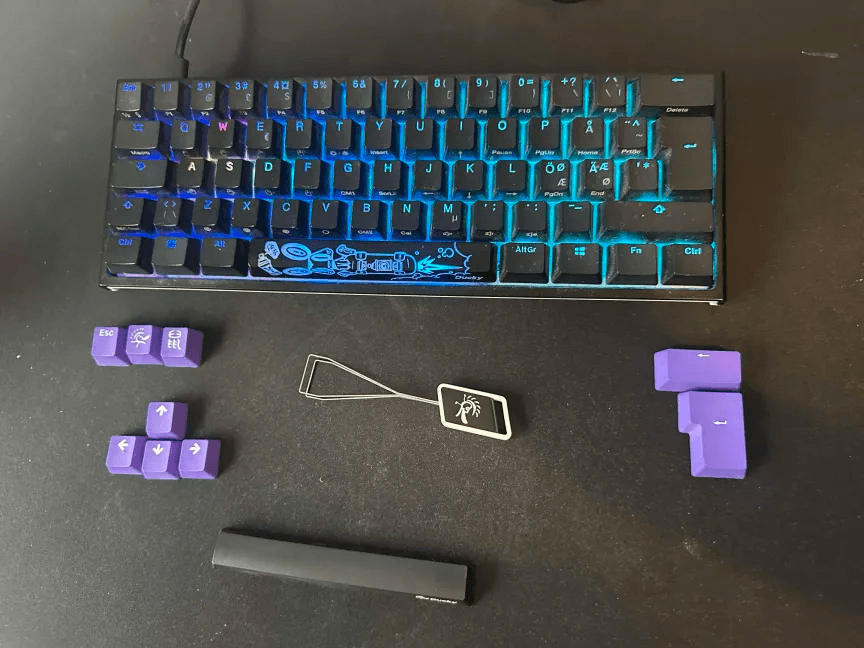
The Ducky One 2 Mini is still a good mechanical keyboard for gamers who value quality keycaps, a clean 60% layout, wired reliability, and plenty of room for their mouse.
That sounds like a simple conclusion, but there is an important distinction between “still good” and “the best keyboard you can buy.” The One 2 Mini remains enjoyable to use because it gets many of the physical basics right. The keys are full-sized and properly spaced, the keyboard does not waste desk space, and the PBT keycaps available on popular versions feel far better than the thin, slippery keycaps found on many cheaper gaming keyboards.
The compact design is especially useful for FPS gaming. If you play with low mouse sensitivity, the space saved by removing the numpad, arrow cluster, navigation keys, and function row gives you much more room for wide mouse movements. That benefit is immediate and practical. It is not a specification you forget about after opening the box.
I also like that the One 2 Mini does not require another large software program running in the background. Its lighting, macros, profiles, and other functions can be controlled from the keyboard itself. That keeps the experience clean, although it also creates a learning curve because several controls require combinations of Fn, Alt, and another key.
However, it is no longer an automatic recommendation at $85.
The original One 2 Mini lacks wireless connectivity, dedicated arrow keys, modern configuration software, and a hot-swappable PCB. Newer keyboards can offer more flexibility for the same amount of money, and competitive players now have access to Hall Effect models with adjustable actuation and Rapid Trigger.
Independent testing has also raised latency concerns with certain versions, particularly the V2. RTINGS found that the V2’s measured latency was relatively high compared with faster gaming keyboards, even though its mechanical switches still felt light and responsive. That does not make it unusable, but it makes identifying the exact version important for highly competitive players. RTINGS’ Ducky One 2 Mini V2 review
For normal gaming, the One 2 Mini remains capable and satisfying. For someone trying to build the fastest possible competitive setup in 2026, there are more technically advanced choices.
WorthTheCart Score
Category | Score |
|---|---|
Value | 8.1/10 |
Everyday Use | 8.0/10 |
Build Quality | 8.7/10 |
Gaming Experience | 8.3/10 |
Potential Regret | 7.7/10 |
Overall Score | 8.2/10 |
Cart verdict: The Ducky One 2 Mini is worth considering at $85 if you specifically want the Ducky keycaps, recognizable design, wired connection, and compact 60% form factor. Compare it with the newer One 2 Mini Pro before ordering, and choose a 65% keyboard instead if you regularly use arrow keys.
Ducky One 2 Mini Specifications
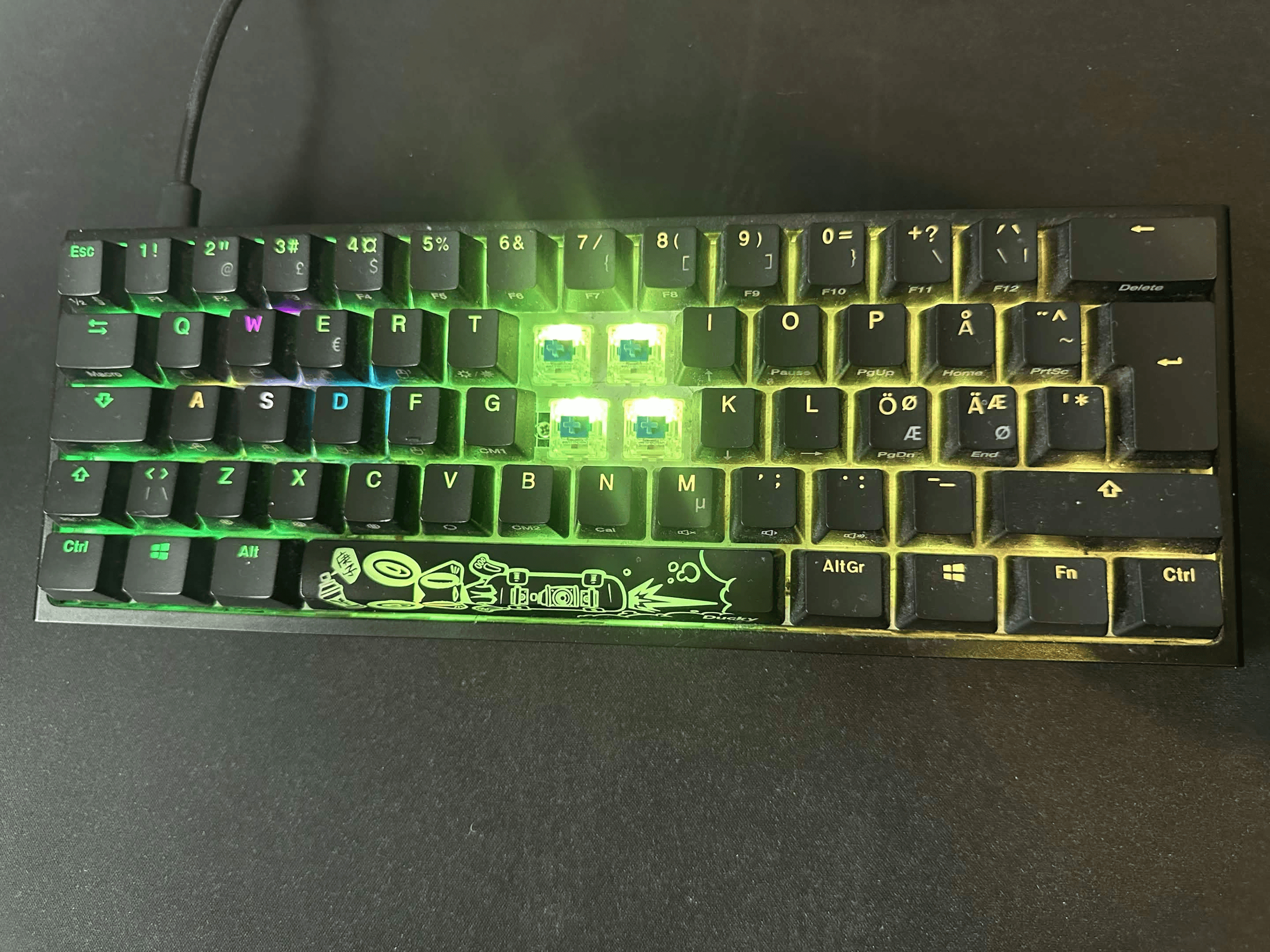
Specifications can vary between generations, layouts, switch versions, colors, and special editions. The information below focuses primarily on the DKON2061ST Ducky One 2 Mini RGB covered by the official manual.
Specification | Ducky One 2 Mini |
|---|---|
Layout | 60% compact |
Number of keys | 61 on the U.S. ANSI version |
Dimensions | 302 × 108 × 40mm |
Weight | Approximately 590g |
Connection | Wired |
Cable | Detachable USB-C |
Keycaps | Common versions use double-shot PBT keycaps; material can vary by edition |
Switch type | Mechanical; available with several switch options depending on version |
RGB | Per-key RGB with onboard controls |
Polling rate | 1,000Hz on commonly sold DKON2061ST versions |
Key rollover | USB N-key rollover, with a six-key rollover mode |
Macro support | Onboard hardware macro recording |
Adjustable angle | Three typing positions |
Hot-swappable | No, on the standard One 2 Mini V1 and V2 |
The keyboard’s 302 × 108mm footprint is the specification that matters most in real use. A full-size keyboard can take up a surprising amount of space, especially when it includes a large frame, media controls, and a numpad. The One 2 Mini removes nearly everything to the right of the Enter key and keeps the frame close to the keys.
That gives you more freedom to position it. You can center the keyboard in front of your body without pushing the mouse far to the side. You can also angle it slightly during gaming without having a large corner cutting into the space reserved for the mousepad.
The 590g weight creates a good middle ground. It is light enough to move between setups or put in a backpack, but it does not feel like a hollow travel keyboard that slides around every time you press Shift. The rubber feet and adjustable stands help keep it stable on a normal desk.
The detachable USB-C connection is another practical feature. If the cable becomes damaged, you can replace the cable instead of replacing the entire keyboard. It is also easier to pack the board without leaving a fixed cable bent around the case.
One specification that deserves more attention is the lack of wireless connectivity. This means there is no battery to charge and no Bluetooth pairing to manage, but it also means the keyboard will always need a cable running across the desk.
The model number matters more than many Amazon listings make clear. The older DKON1861ST and newer DKON2061ST versions are both commonly described as the Ducky One 2 Mini, but they can differ in their firmware, DIP-switch behavior, and other details. Check the label underneath the keyboard before downloading firmware or following advanced instructions.
Why Did the Ducky One 2 Mini Become So Popular?
The One 2 Mini arrived at exactly the right time.
Competitive gamers were moving toward smaller keyboards, mechanical keyboard enthusiasts wanted better keycaps than mainstream gaming brands typically provided, and streamers were making minimalist gaming setups highly visible. A tiny mechanical keyboard with bright RGB lighting looked immediately different from the large black gaming keyboards that dominated desks at the time.
Its association with professional gamers and popular content creators also helped. ProSettings still listed the Ducky One 2 Mini as being used by 12 tracked players in July 2026, although Ducky keyboards are less dominant in professional gaming than they were before Hall Effect models became popular. ProSettings’ Ducky One 2 Mini data
That connection matters because gaming equipment is highly visual. Viewers notice the mouse, keyboard, headset, and monitor used by their favorite players. When compact Ducky keyboards began appearing in professional and streaming setups, the 60% layout stopped looking like a niche product made only for keyboard enthusiasts.
The popularity was not based entirely on influencer exposure, though. The One 2 Mini offered a combination that was difficult to find from mainstream gaming brands at the time:
A truly compact 60% layout
Durable PBT keycaps on popular configurations
Several mechanical switch choices
Strong RGB lighting
A detachable USB-C cable
Onboard profiles and macros
No mandatory background software
Extra keycaps and decorated spacebars
A clean design that did not look overly aggressive
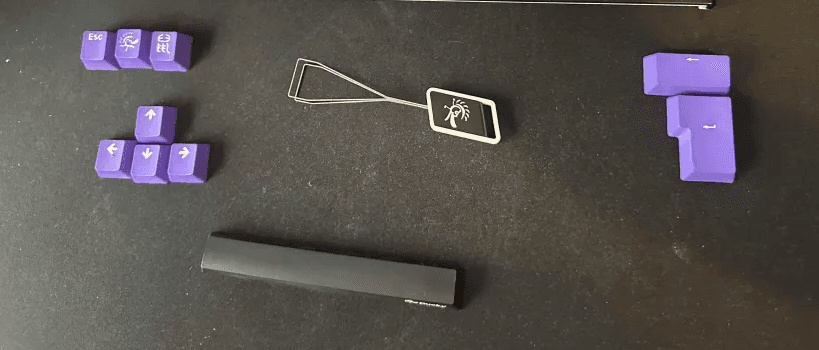
The extra keycaps were not necessary, but they made opening the keyboard more interesting. Different editions could include colorful accent keys or decorated spacebars, giving the board a little more personality without forcing the buyer to purchase a completely separate keycap set immediately.
I think that personality is part of why people still remember the One 2 Mini. There are now many affordable 60% keyboards, but a lot of them feel interchangeable. Ducky created something that looked simple while still feeling like it had been made by people who genuinely enjoyed mechanical keyboards.
Professional use should not be treated as proof that it is the fastest keyboard available today. Sponsored equipment, personal preference, familiarity, availability, and team relationships can all influence what a professional player uses. A keyboard appearing on a professional desk does not guarantee that it will improve your own aim, movement, or reaction time.
The more honest conclusion is that the One 2 Mini earned its reputation by combining compact dimensions with a genuinely good physical typing and gaming experience. It became popular because it felt different from ordinary gaming keyboards—not because it has remained technically unbeatable forever.
Is the Ducky One 2 Mini Good for Gaming?
Yes, the Ducky One 2 Mini is good for gaming, particularly if your games mainly use the left side of the keyboard.
In shooters such as Fortnite, Valorant, Counter-Strike 2, Apex Legends, and Call of Duty, most essential inputs are positioned around WASD. Removing the numpad, navigation cluster, arrow keys, and function row does not normally interfere with movement, weapon selection, reloading, crouching, sprinting, or jumping.
The biggest benefit is physical space.
A full-size keyboard can push your mouse farther to the right. That may not matter to someone playing with very high sensitivity and making small wrist movements, but it becomes more noticeable when you use a lower sensitivity and move the mouse across a large portion of the pad.
The One 2 Mini allows the mouse and keyboard to sit closer together while leaving more room for wide movements. This can create a more natural shoulder position and reduce the number of times the mouse collides with the edge of the keyboard during a fast turn.
That extra space is the feature I appreciate most in actual use. RGB effects look great in photos, but the smaller footprint is what continues to matter after the novelty of changing colors has worn off.
The wired USB-C connection also avoids battery anxiety. You do not have to remember to charge the keyboard before a long session, worry about the battery running low during a match, or decide whether to keep the RGB lighting dimmed to preserve battery life.
There is also something satisfying about a simple wired connection. Plug it in, select the lighting you want, and start playing. Wireless gaming keyboards have improved significantly, but the One 2 Mini avoids the entire category of charging and pairing problems.
Its N-key rollover support is useful during games that require several simultaneous inputs. If you hold movement keys while sprinting, crouching, activating an ability, and pressing another command, the keyboard is designed to register those inputs without normal ghosting problems.
The small layout can create limitations in games that rely heavily on arrow keys, function keys, a numpad, or a large number of dedicated commands. Strategy games, simulation games, and certain MMOs may benefit from having more physical keys immediately available.
The One 2 Mini can reproduce many of those missing functions through its secondary layers and macros, but holding Fn is not always as convenient as pressing a dedicated key during a busy moment.
For FPS games and compact setups, the layout makes sense. For games requiring a huge number of commands, a TKL or full-size keyboard may still be more practical.
What Matters More Than the Switch Name
A keyboard listing may focus heavily on whether it has Cherry MX Red, Brown, Blue, Silver, or another switch. Switch choice matters, but personal preference matters more than the color printed on the box.
Linear switches such as Reds are commonly preferred for gaming because they move smoothly without a tactile bump. Browns add a light tactile indication, while Blues produce an audible click and a more noticeable tactile response.
Blue switches can feel satisfying when typing, but they can also become tiring or distracting in a shared room. If you use a sensitive microphone, the clicks may be clearly audible to teammates, viewers, or anyone listening to a recording.
Reds are generally easier to recommend for someone who mainly wants a smooth gaming switch. Browns are a sensible middle ground for a buyer who also types frequently and wants a small amount of feedback.
Silver or speed-style switches can activate with less travel, but that does not automatically make them better for everyone. The shorter actuation can also make accidental inputs easier if you rest your fingers heavily on the keys.
None of these switches will turn a weak player into a competitive one. A different switch might make the keyboard more comfortable or responsive to you, but it cannot replace practice, positioning, game knowledge, aim, or reaction time.
The more useful questions are:
Do you enjoy the resistance?
Is the sound suitable for your room?
Can you type comfortably on the switch?
Do you make accidental key presses?
Will the switch remain comfortable after several hours?
Are you using a microphone that will pick up loud clicks?
Do you want a smooth press or a noticeable tactile bump?
Because the standard One 2 Mini is not hot-swappable, selecting the wrong switches is a more expensive mistake. You cannot simply remove them with a switch puller and insert a completely different set. Properly replacing soldered switches requires opening the keyboard, desoldering the old switches, and soldering replacements into the PCB.
If you have never used mechanical switches before, try them in a store or purchase from a seller with a clear return policy. Choosing the correct switch will affect your long-term satisfaction more than choosing the best-looking accent key.
The Competitive Gaming Warning
The One 2 Mini was designed before adjustable actuation, Rapid Trigger, and Hall Effect switches became common gaming features.
Hall Effect keyboards can detect how far a key has moved and allow users to adjust where the input activates or resets. Rapid Trigger can reset a key based on movement rather than requiring it to return to a fixed point. These features can be valuable in games where players repeatedly tap movement keys and want inputs to stop or react as quickly as possible.
The Ducky uses conventional mechanical switches with fixed physical actuation behavior. That does not make it bad for normal gaming. Mechanical keyboards were used at high competitive levels for years before Hall Effect boards became popular.
Most players will be affected far more by their internet connection, monitor refresh rate, frame rate, mouse control, reaction time, positioning, and consistency than by small differences between decent keyboards.
However, players trying to minimize every possible millisecond should compare independent latency results for the exact version they are buying. The One 2 Mini V1 and V2 do not perform identically, and the label underneath the keyboard is more reliable than a seller casually describing every version as a “Ducky One 2 Mini.”
It is also important not to confuse switch actuation with total keyboard latency. A switch can feel light and quick while the keyboard’s internal processing still produces a slower measured result than competing models.
For casual gaming and mainstream competitive play, the One 2 Mini remains capable. I would not personally replace a perfectly working One 2 Mini purely because newer keyboards advertise Rapid Trigger. An upgrade makes more sense when you know that you want adjustable actuation, have a specific competitive reason for using it, or are already planning to replace the keyboard.
For a buyer building a completely new, no-compromise esports setup in 2026, a modern low-latency or Hall Effect keyboard is easier to recommend. For someone who values keycaps, physical quality, compact dimensions, and simplicity, the Ducky still has a strong argument.
Living With a 60% Keyboard
The One 2 Mini is small without making the main letter keys smaller. The standard typing area remains familiar, but many physical buttons have been moved to a secondary function layer.
That distinction is important.
You do not completely lose the ability to use arrow keys, function keys, navigation commands, or certain media functions. You lose immediate, one-press access to them.
On the DKON2061ST U.S. layout, the arrow functions are:
Fn + Ifor UpFn + Jfor LeftFn + Kfor DownFn + Lfor Right
This is manageable when you occasionally need to move through a menu or make a small correction. Once you develop the muscle memory, pressing Fn and one of those four keys becomes fairly natural.
It becomes more frustrating when editing a long document, working in a spreadsheet, navigating a video timeline, programming, selecting text, or moving through folders repeatedly. Tasks that normally require a quick tap on an arrow key now require a combination.
That is the real 60% compromise. The keyboard does not feel cramped while typing normal letters, but it asks you to accept extra steps for less common functions.
For gaming, I rarely feel that the missing numpad matters. For ordinary computer use, the missing arrow keys are much easier to notice. Whether that becomes a small inconvenience or a constant frustration depends entirely on your routine.
A 65% keyboard is only slightly wider but normally restores dedicated arrow keys and a few navigation buttons. That makes 65% the safer compact layout for someone who wants one keyboard for gaming, studying, writing, browsing, and productivity.
A TKL keyboard is wider again but restores the function row and navigation cluster while still removing the numpad. That can be the best balance for players who want more mouse space without learning multiple function-layer shortcuts.
The One 2 Mini makes the most sense when desk space and mouse freedom matter more than instant access to every command. If you already know you rarely touch the arrow keys or numpad, the layout can feel refreshingly efficient.
If you are uncertain, pay attention to how often you use those keys on your current keyboard before buying. That small observation can prevent much more buyer’s regret than reading another page of gaming specifications.
Keycaps, Build Quality, and Typing Experience
The keycaps are one of the strongest reasons to consider the Ducky One 2 Mini.
Popular retail versions use double-shot PBT keycaps. PBT is more resistant to the smooth, greasy shine that can develop on cheaper ABS keycaps after regular use. The surface normally keeps a slightly textured feel for longer, which makes the keys feel more controlled under the fingers.
Double-shot legends are formed using separate layers of plastic rather than simply being printed onto the top. Normal use should not cause the letters to rub away in the same way that cheaper printed legends sometimes do.
Exact keycap material can vary by edition, so check the specific listing. The official DKON2061ST manual mentions PBT or ABS and double-shot or laser-engraved versions, while many of the commonly sold One 2 Mini RGB configurations use PBT double-shot keycaps. Ducky One 2 Mini user manual
The texture is difficult to communicate through a product listing, but it influences every interaction with the keyboard. You touch the keycaps constantly, while many of the more dramatic advertised features are used only occasionally.
This is one of the areas where I think the Ducky still feels special. The One 2 Mini does not need an enormous metal frame to feel like a serious mechanical keyboard. Much of that quality comes from the keycaps, spacing, switches, and stability of the larger keys.
The standard One 2 Mini uses a plastic chassis rather than a heavy aluminum case. It is not as premium as the aluminum Mecha Mini, but it still feels solid for such a compact board. Its smaller dimensions also make major flex less noticeable during normal use.
Rubber pads underneath the case help prevent sliding. The two-stage feet create three possible typing angles, allowing you to keep the keyboard relatively flat or raise the rear.
There is no wrist rest in the box. Some users will not need one because the board is narrow and relatively low, while others may find a separate wrist rest more comfortable during long sessions. This is personal and depends on your desk height, chair position, and typing angle.
The detachable USB-C cable is practical, although the included cable is not the most premium part of the package. It is fairly basic compared with the braided or coiled cables included with some modern keyboards.
Fortunately, the cable is easy to replace. You can choose a longer cable, a more flexible one, or a custom cable that matches the rest of your setup without modifying the keyboard.
The overall build quality is not about one spectacular material. It comes from the combination of decent weight, stable keys, good keycaps, a compact body, and a design that does not feel overloaded with unnecessary plastic.
The Important Long-Term Limitation
The original Ducky One 2 Mini and the V2 are not hot-swappable.
The included keycap puller can remove the keycaps, but that does not mean the switches underneath are removable in the same way. Pulling a soldered switch without opening and desoldering the board can damage the switch, plate, or PCB.
Changing the switches properly requires opening the case, desoldering every switch you want to replace, and soldering the new switches into place. That is realistic for an experienced keyboard hobbyist, but it is not a beginner-friendly upgrade.
This limitation was normal when the One 2 Mini became popular. It is harder to overlook in 2026 because affordable hot-swappable keyboards are widely available.
Hot-swapping gives you the freedom to replace a broken switch, test a different switch type, or completely change the feel of the keyboard without buying a new board. It can extend the useful life of a keyboard, particularly for someone who enjoys experimenting.
On the other hand, not everyone needs that freedom. If you already know which switch you like and the keyboard continues working properly, you may never have a reason to remove a switch.
I would not replace a functioning One 2 Mini simply because it is not hot-swappable. But if I were advising a first-time mechanical keyboard buyer who was unsure about switches, I would consider hot-swapping an important advantage.
The limitation matters most before buying. Choose the switches carefully, because the easiest way to change them later may be to replace the entire keyboard.
Ducky One 2 Mini RGB Controls
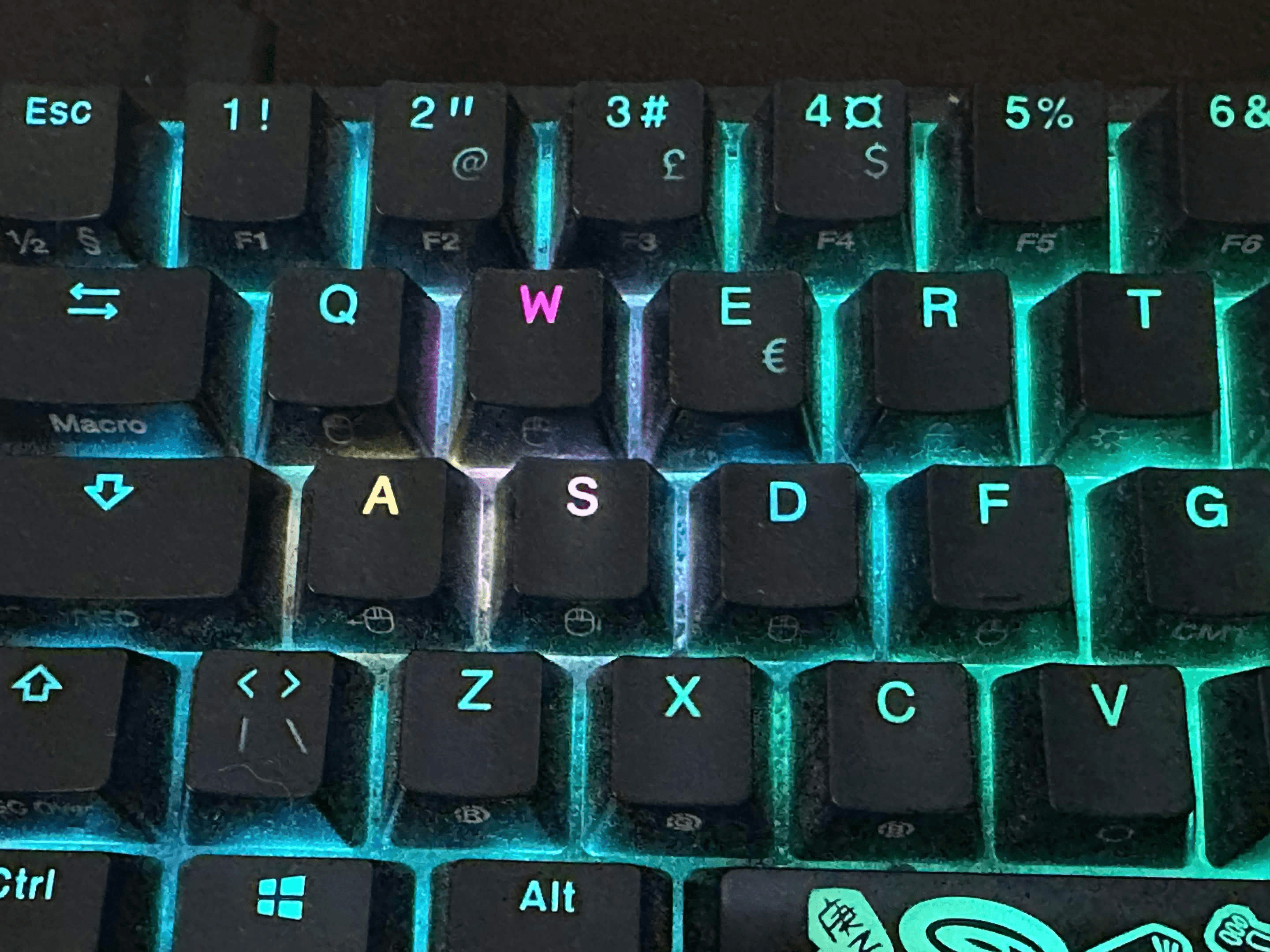
The Ducky One 2 Mini RGB controls are handled directly on the keyboard. You do not need to install or keep a separate RGB application running in the background, but you will need to remember a few shortcuts.
These instructions apply to the DKON2061ST One 2 Mini and DKME2061ST Mecha Mini covered by the official manual. Older versions can use different controls, so check the model number on the label underneath your keyboard first.
Essential RGB Shortcuts
Shortcut | Function |
|---|---|
| Cycle through the preset RGB modes |
Hold | Turn off all backlighting, including CM1 and CM2 |
| Decrease lighting-effect speed |
| Increase lighting-effect speed |
| Adjust red brightness through 10 levels |
| Adjust green brightness through 10 levels |
| Adjust blue brightness through 10 levels |
| Clear the current red, green, and blue color values |
| Open the RGB color palette |
These commands come directly from the Ducky One 2 Mini user manual.
Pressing Fn + Alt + T cycles through the available lighting effects. The DKON2061ST manual includes Wave, Color Cycle, Rain Drop, Ripple, Random Reactive, Reactive, Breathe, Full Backlight, and Radar modes.
If you want to turn everything off, hold Fn + Alt + T for three seconds rather than tapping it. The manual specifically states that this disables all backlighting, including the CM1 and CM2 custom zones.
The speed controls are straightforward. Fn + Alt + J slows the animation, while Fn + Alt + L makes it faster. These controls work with the animated modes.
The color-adjustment controls apply only to lighting modes that support a user-selected color. If Fn + Alt + Z, X, or C does not seem to change anything, cycle to a color-adjustable mode before assuming the keyboard is broken.
The lack of software is both an advantage and a disadvantage.
I like not having another program opening automatically with Windows, requesting updates, or using system resources just to remember a lighting effect. The settings live on the keyboard, making them available when you move it to another compatible computer.
The disadvantage is that onboard shortcuts are less obvious. You probably will not remember every combination immediately, and the keycap side legends can be difficult to read in a dark room. Saving the manual or this section can prevent a lot of random key pressing later.
How to Change Color on the Ducky One 2 Mini
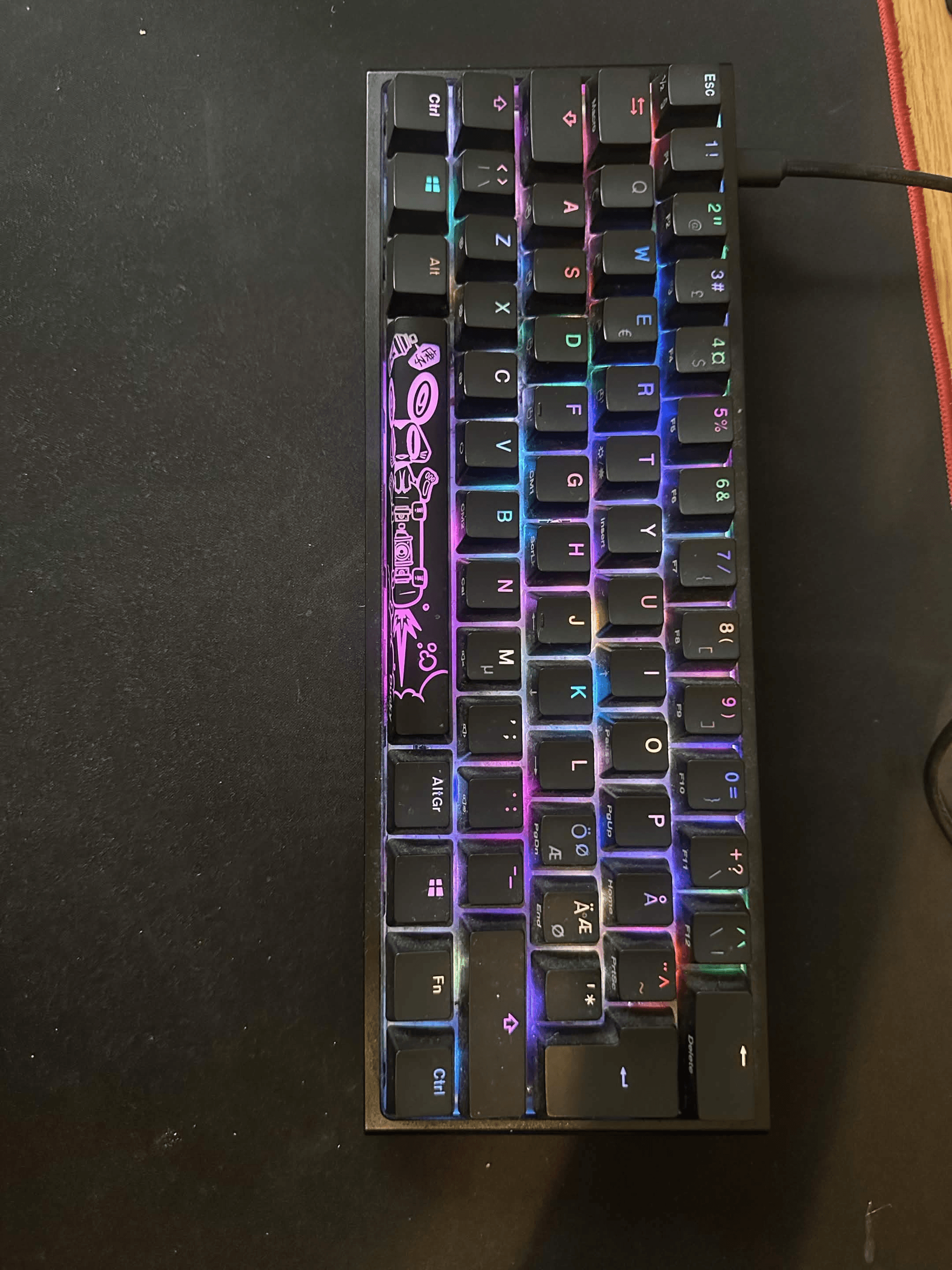
The fastest way to change color on the Ducky One 2 Mini is to use its built-in color palette.
According to the official DKON2061ST user manual, the correct process is:
Use
Fn + Alt + Tto select a lighting mode that allows color adjustment.Press
Fn + Alt + Spacebar.The keyboard will illuminate its keys in different available colors.
Press the key displaying the color you want.
The keyboard will change the compatible lighting mode to match that color.
The important detail is that the color palette is displayed directly across the keyboard. You are not choosing a letter or typing a command. You are pressing whichever illuminated key visually shows the color you want.
This is the easiest option if you simply want the whole board to display one color. You do not need to calculate RGB values or cycle through individual brightness levels.
You can also create a color manually by adjusting the red, green, and blue channels:
Press
Fn + Alt + Zto adjust red brightness.Press
Fn + Alt + Xto adjust green brightness.Press
Fn + Alt + Cto adjust blue brightness.Press
Fn + Alt + Vto clear the red, green, and blue settings.
Each channel has 10 levels. Combining different amounts of red, green, and blue lets you create colors beyond the quickest palette choices.
For example, increasing red and blue while leaving green lower can produce a purple tone. Increasing red and green can move the color toward yellow. It takes more experimentation than selecting from the palette, but it gives you more direct control.
If nothing appears to happen, first check that you are using a compatible lighting mode. Not every animated rainbow effect accepts a single custom color because some effects depend on cycling through multiple colors automatically.
Creating Custom RGB Zones
The keyboard also supports two custom lighting zones called CM1 and CM2. These let you select specific keys and give them their own colors.
This can be useful for highlighting the controls needed in a particular game. You might illuminate WASD in one color, Shift and Ctrl in another, and the number keys used for weapon selection in a third.
To create a custom zone:
Hold
Fn + Alt + Caps Lockfor three seconds.The
GandBkeys should illuminate.Press
Gto configure CM1 orBto configure CM2.Caps Lock will display the color currently being selected.
Use
Caps Lock + Z,X, andCto adjust the red, green, and blue levels.You can use
Caps Lock + Vto clear the selected color orCaps Lock + Spacebarto open the color palette.Once you have selected a color, press the individual keys you want to assign that color.
If you press an already selected key again, its custom assignment is removed.
Repeat the color-selection process if you want different keys to use different colors.
Press
Caps Lock + Left Shiftto finish and save the custom zone.
These steps match the RGB zone instructions in Ducky’s manual.
After recording, Fn + Alt + G cycles CM1 between static, breathing, and off. Fn + Alt + B does the same for CM2.
CM1 and CM2 can operate alongside another lighting effect. If both custom zones assign a color to the same key, CM1 has priority over CM2.
The keyboard exits the recording session without saving if there is no activity for 30 seconds. It is therefore worth deciding which keys you want before entering the recording mode.
The system takes more effort than dragging across keys in an RGB application, but it also gives the One 2 Mini a useful advantage: your custom setup is controlled through the keyboard rather than being dependent on software installed on one computer.
How to Play Minesweeper on the Ducky One 2 Mini
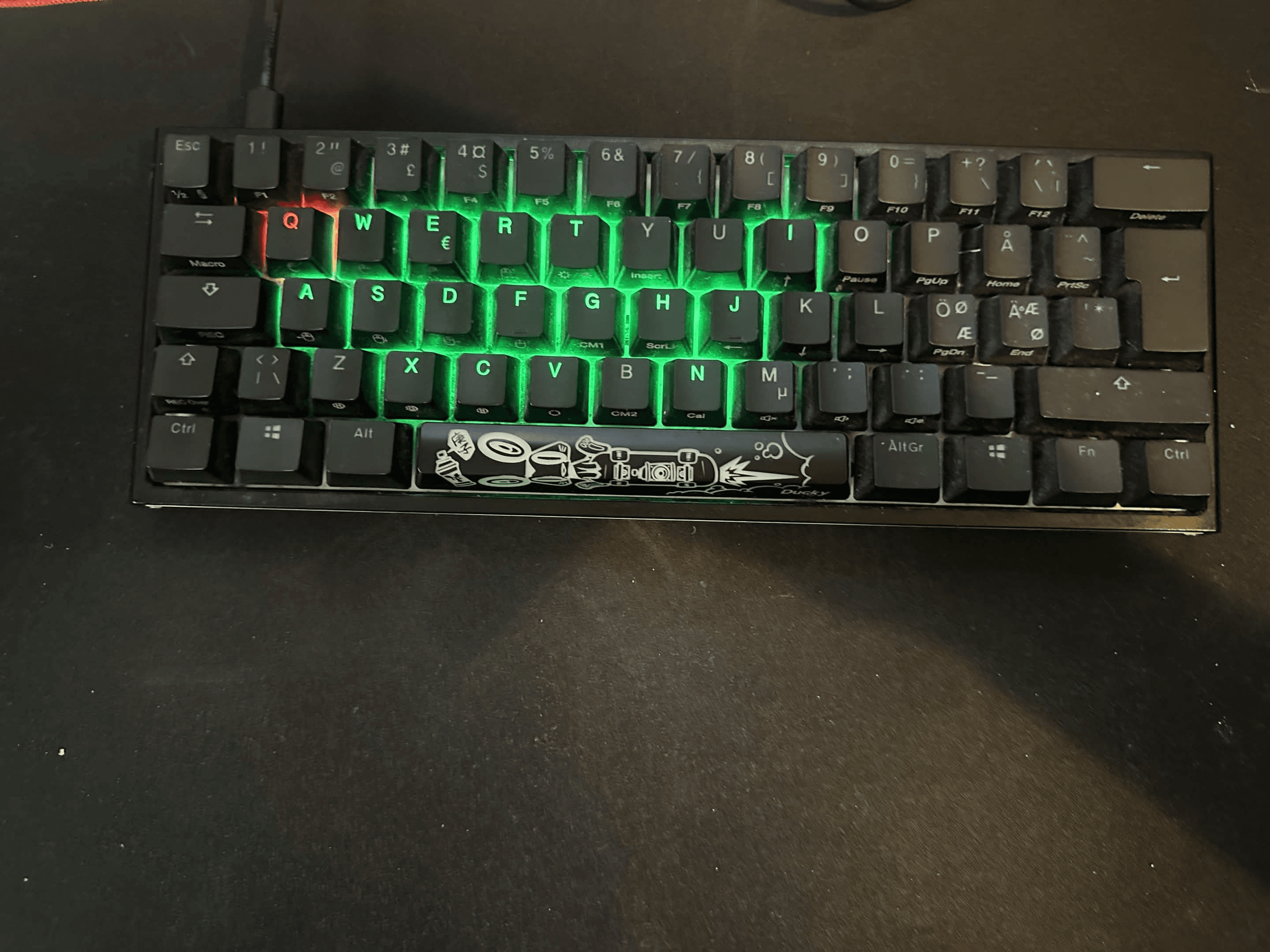
Yes, you can actually play a simple RGB version of Minesweeper directly on the Ducky One 2 Mini.
I double-checked this feature against both the English and Chinese instructions in the official DKON2061ST manual because the English translation refers to the Spacebar as the “blank button.” The Chinese instructions confirm that the key used to enter the next round is the Spacebar.
To start Ducky Minesweeper mode:
Hold
Fn + Alt + ,for three seconds.The keyboard will randomly select one or more keys as mines.
Press individual keys to reveal them.
A green light means that the selected key is safe, and you can continue playing.
A red light means that you found a mine, and the round ends.
After the round ends, press the Spacebar to begin the next round.
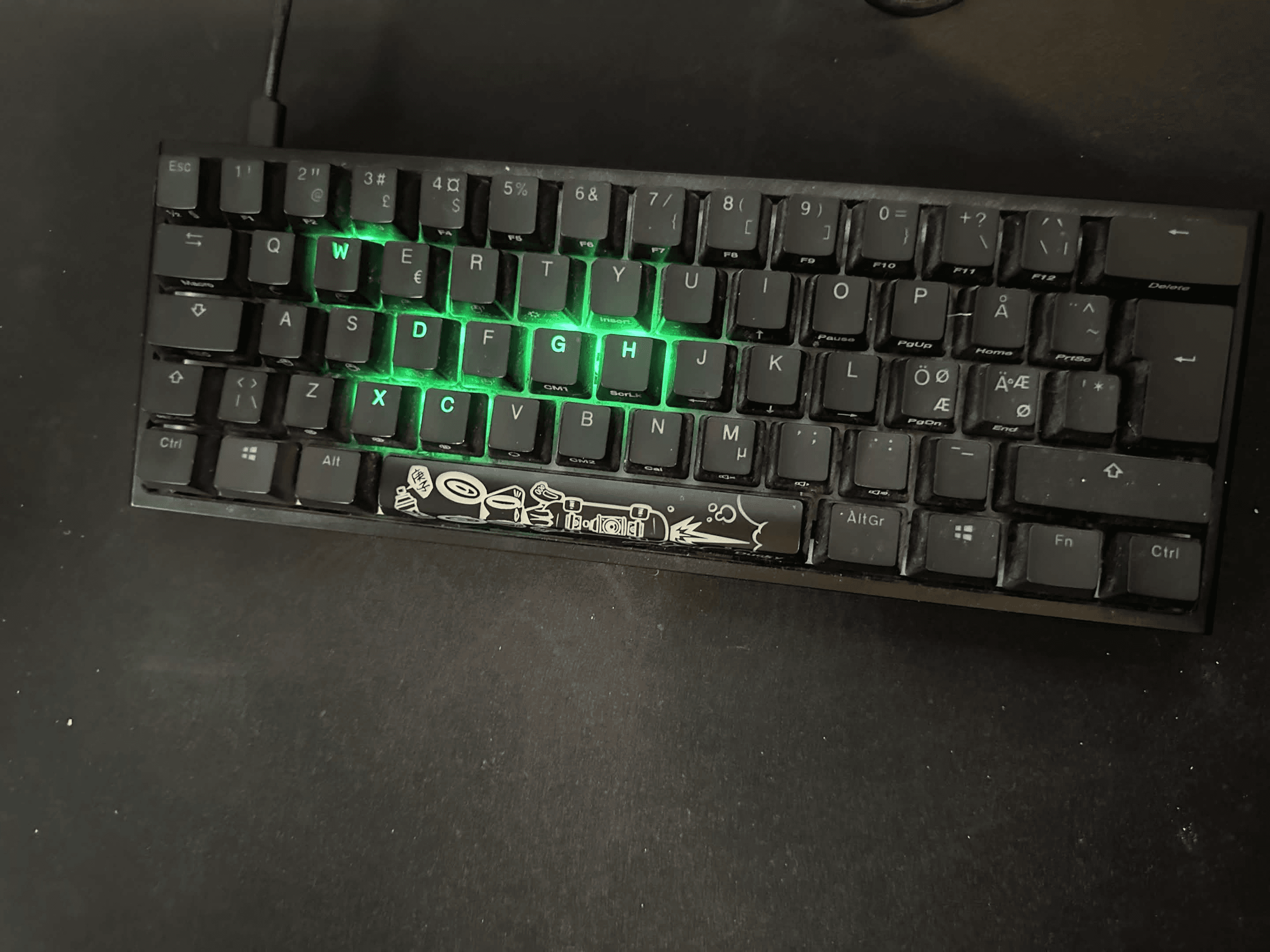
These are the exact instructions given in the Ducky One 2 Mini user manual.
It is important to understand that this is not traditional computer Minesweeper with numbered tiles indicating how many mines are nearby. The keyboard does not give you the same logical clues as the Windows game.
Ducky’s version is closer to a luck-based keyboard game. You reveal keys one at a time and hope they illuminate green rather than red.
That makes it simple enough to demonstrate to someone without explaining the rules. Hold the shortcut, press keys, and see how far you get before finding a red mine.
The game mode automatically exits after 10 minutes without activity. Starting another lighting mode from the Fn + Alt layer also closes the gaming interaction mode.
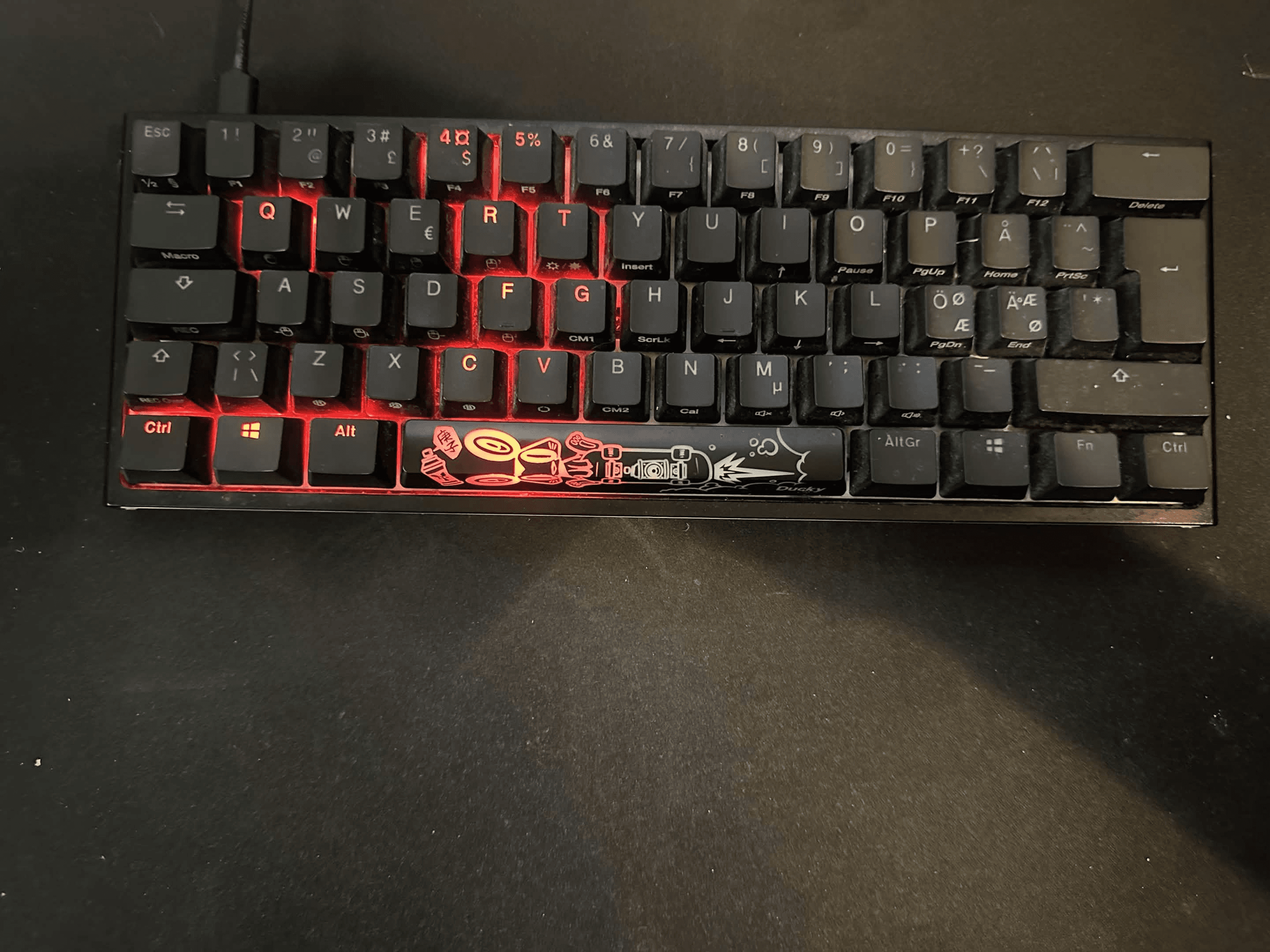
Minesweeper should have almost no influence on whether you buy the keyboard. It does not improve gaming performance, typing comfort, durability, or value. Most owners will probably test it a few times and then return to a normal lighting effect.
Still, I am glad it exists. It gives the One 2 Mini personality and shows that Ducky treated the RGB system as more than a way to display a permanent rainbow. It is one of those unnecessary features that makes the keyboard more memorable.
How to Reset the Ducky One 2 Mini
A factory reset can help if the RGB controls behave strangely, macros have been recorded accidentally, keys appear remapped, or you simply want to return the keyboard to its original settings.
For U.S. ANSI and European ISO layouts:
Hold the left Windows key and right Windows key together.
Keep holding both keys for three seconds.
The keyboard’s backlight should flash three times.
The keyboard has now been reset to its factory settings.
For the Japanese JIS layout, hold Fn + Left Windows instead.
These commands are confirmed in the factory-reset section of the official manual.
A factory reset is useful when you cannot remember which profile is active or when a key starts producing an unexpected command because of an old macro. It can be much faster than trying to identify every setting that has changed.
The reset removes custom settings and recorded macros, so do not use it casually if you have spent time creating profiles you want to keep.
If the reset shortcut does not work, check the model number underneath the keyboard. Also make sure the Windows keys have not been locked or moved through the keyboard’s remapping controls.
Do not confuse a factory reset with a firmware update. A reset returns the keyboard’s existing settings to their defaults. It does not install new firmware, change the model, or repair physical damage.
Ducky One 2 Mini Manual
The full Ducky One 2 Mini manual covers far more than the small printed shortcut legends can explain.
It includes:
Keyboard layout diagrams
Function-layer commands
RGB lighting effects
Custom RGB zones
Minesweeper and Gamble modes
Mouse controls
Debounce-time settings
Factory reset
Windows-key lock
DIP-switch functions
Onboard profiles
Macro recording
Multimedia functions
The manual applies to the DKON2061ST Ducky One 2 Mini RGB and the DKME2061ST Mecha Mini. Ducky lists a separate manual and firmware for the older DKON1861ST, confirming that the model number matters.
You can normally find the product number on a label underneath the keyboard. Check it before following instructions intended for another generation.
The manual is not always easy to understand on the first reading. Some of its English translations are slightly awkward, and several functions are shown through keyboard diagrams rather than long explanations. Once you understand that most RGB commands begin with Fn + Alt, the controls become much easier to follow.
I recommend saving the manual rather than relying on random shortcuts from forum posts. A shortcut written for a different One 2 Mini version may not behave in the same way on your keyboard.
Be especially careful with firmware.
Do not install a firmware file simply because its name includes “One 2 Mini.” Ducky warns that using incorrect firmware can leave the keyboard unusable. Confirm the exact model number and required firmware version before installing anything.
For normal color changes, macros, Minesweeper, or a factory reset, you do not need to update the firmware. The onboard controls are enough.
Ducky One 2 Mini Price: Is It Worth $85?
At a Ducky One 2 Mini price of $85, the answer depends on which version you receive and what you value most.
For a genuine One 2 Mini with the switches you want, good PBT keycaps, RGB lighting, and a reasonable return policy, $85 is not outrageous. It remains more thoughtfully designed than many generic 60% keyboards that compete mainly through low prices and long feature lists.
The keycaps alone help it feel more premium than a basic budget keyboard. The compact dimensions are genuinely useful, and the mechanical switches should provide a much more defined experience than a cheap membrane board.
However, $85 is no longer an obvious bargain.
Affordable keyboards now offer hot-swappable switches, wireless connectivity, sound-dampening foam, gasket mounting, software customization, and sometimes aluminum cases. A buyer can reasonably expect more features for less money than when the One 2 Mini originally became popular.
The newer Ducky One 2 Mini Pro has also appeared for approximately $70–$80 through specialist U.S. retailers, with updated stabilizers and acoustic treatment. Prices and stock can change, but if the Pro version costs the same as—or less than—the original, the newer version is usually the more sensible choice.
The original at $85 makes the most sense when:
You prefer its exact design or colorway.
It includes the specific switches you want.
You want the recognizable classic One 2 Mini.
You trust the seller and return policy.
You care more about keycaps and simplicity than wireless features.
You want a compact board without installing customization software.
The alternatives you are considering have worse physical quality.
It makes less sense when modern gaming performance, hot-swapping, wireless connectivity, or easy software control is your priority.
I would not call $85 too expensive for the experience. I would call it a price that requires comparison. The keyboard is good enough to justify the cost, but its age means you should not purchase it without checking what else is available.
Ducky One 2 Mini Amazon Buying Advice
When shopping for a Ducky One 2 Mini on Amazon, do not judge the listing only by the main product photo.
Several generations, switch types, colors, regional layouts, special editions, and similarly named Pro models may appear under related listings. Amazon can also combine multiple configurations on one page, causing reviews and questions to refer to a different variant than the one currently selected.
Before ordering, check:
The complete product name: Is it the original One 2 Mini, V2, Mecha Mini, or One 2 Mini Pro?
The model number: DKON1861ST and DKON2061ST are not identical.
The switch selection: Red, Brown, Blue, Silver, and other switches feel and sound different.
The keyboard layout: Confirm that it is the U.S. ANSI layout if that is what you expect.
The seller: Check who is actually selling and fulfilling the product.
The return policy: This is important if you have never tried the selected switches.
The included accessories: Look for the USB cable, keycap puller, and advertised extra keycaps.
The final price: Compare the original with the newer Pro before paying.
The condition: Make sure the listing is new rather than used, renewed, or open-box unless that is intentional.
The keycaps: Confirm whether the selected edition includes PBT double-shot keycaps.
The Ducky One 2 Mini Amazon listing is worth considering at the stated $85 price, but verify the exact variant shown at checkout because product selections, prices, and third-party sellers can change.
The switch selection may be the most important choice. If you order Blue switches while expecting a quiet keyboard, the product can feel completely wrong even if everything works perfectly. If you choose a very light switch and frequently press keys accidentally, you may wish you had selected a slightly heavier option.
The return policy therefore has real value. A mechanical switch is difficult to evaluate from words such as “linear,” “tactile,” and “clicky.” Those descriptions help, but they cannot tell you exactly how the switch will feel under your fingers.
Long-Term Value: The Cost Per Use
A durable keyboard can justify a higher purchase price because it is used so frequently.
If the Ducky costs $85 and is used daily for three years:
$85 ÷ 1,095 days = approximately $0.08 per day
If it lasts five years:
$85 ÷ 1,825 days = approximately $0.05 per day
That is strong long-term value if you genuinely enjoy the layout and switches.
A keyboard is one of the few computer accessories you physically interact with almost constantly. Even when you are not gaming, you use it for passwords, messages, searches, schoolwork, work, and ordinary navigation.
Paying slightly more for keycaps and switches that feel better can therefore make more sense than spending the same money on a visual accessory you rarely notice.
The cost-per-use argument collapses if you discover after two months that you cannot tolerate the missing arrow keys or dislike the switch type. The largest financial risk is not necessarily the keyboard breaking. It is choosing the wrong configuration and replacing it early.
That is why layout and switches deserve more attention than RGB. Lighting can be changed in seconds. The 60% design and soldered switches are much more permanent.
There can also be small hidden costs:
A wrist rest if the keyboard angle feels uncomfortable
A longer or more flexible USB-C cable
Replacement keycaps for a different appearance
A separate numpad for spreadsheet or data-entry work
A completely new keyboard if you later want different switches
Shipping or return costs if you select the wrong variant
None of these purchases is mandatory. The One 2 Mini is complete and usable out of the box. They simply affect the true long-term cost for certain buyers.
If you already own a working One 2 Mini, upgrading is not automatically necessary. A newer keyboard needs to solve a real problem—such as missing arrow keys, unwanted switch feel, wireless requirements, or competitive features—to justify replacing something that still works.
Who Should Buy the Ducky One 2 Mini?
Buy the Ducky One 2 Mini if you mainly play games that rely on the left side of the keyboard and want more room for mouse movement.
It is particularly well suited to FPS players using low sensitivity. The narrow body keeps the mousepad open and lets the keyboard sit closer to the center of the desk.
It also makes sense if you prefer wired equipment. There is no battery to monitor, wireless receiver to lose, or Bluetooth connection to manage.
You should strongly consider it if keycap quality matters to you. The PBT-equipped versions feel better than many ordinary gaming keyboards, and the textured surface should resist shine better than cheap ABS caps.
The One 2 Mini is also a good fit if you already know which mechanical switch you like. Because the standard board is not hot-swappable, confidence in your switch selection makes the purchase much safer.
Buy it if you:
Mainly play WASD-focused games
Want more room for wide mouse movements
Have a small gaming desk
Prefer wired reliability
Care about durable PBT keycaps
Already understand 60% keyboard compromises
Know which mechanical switch you want
Prefer onboard controls over software
Like the classic Ducky design
Find the correct version at a fair price
Who Should Avoid It?
Skip the One 2 Mini if dedicated arrow keys are important to your normal routine.
You can access arrows through the function layer, but a shortcut is not always a good substitute for four physical keys. Writers, programmers, spreadsheet users, video editors, and anyone navigating documents frequently may be happier with a 65% or TKL board.
You should also avoid it if wireless connectivity is essential. The One 2 Mini has no Bluetooth or 2.4GHz connection, so it cannot quickly switch between several devices without moving the cable.
It is not ideal for someone who wants to experiment with switches. The non-hot-swappable PCB turns what should be a simple switch change into a soldering project.
A serious competitive player focused on the lowest possible latency and modern movement features should compare it with Hall Effect boards before buying. The Ducky can still play competitive games, but it does not offer adjustable actuation or Rapid Trigger.
Skip it if you:
Frequently use dedicated arrow keys
Need a numpad for work or games
Want Bluetooth or 2.4GHz wireless
Want to change switches without soldering
Prefer controlling RGB through software
Need dedicated volume and media controls
Want adjustable actuation or Rapid Trigger
Are building a no-compromise competitive setup
Can purchase the improved Pro version for less
Have never tested the selected switch and cannot return it
Reasons to Buy
Excellent double-shot PBT keycaps on popular versions
Compact layout creates valuable mouse space
Full-sized and properly spaced main keys
Wide selection of mechanical switch configurations
Clean and recognizable design
Detachable USB-C cable
Strong onboard RGB customization
Two customizable RGB zones
Hardware macro support
No mandatory background software
N-key rollover for simultaneous inputs
Adjustable typing angles
Fun extras, including RGB Minesweeper
Good long-term value if you enjoy the layout
Easy to transport between setups
Reasons to Avoid
No dedicated arrow keys
No function row or numpad
Wired only
Standard versions are not hot-swappable
No modern configuration application
Competitive latency concerns on certain versions
No adjustable actuation or Rapid Trigger
Included cable is fairly basic
No wrist rest
RGB shortcuts take time to learn
Different generations can be confusing
The newer Pro may offer better value
Selecting the wrong switch can cause buyer’s regret
Less practical than a 65% keyboard for productivity
Final Verdict: Is the Ducky One 2 Mini Still Worth It?
The Ducky One 2 Mini is still worth buying in 2026 for the right gamer—but it is no longer the default answer for everyone who wants a small keyboard.
Its best qualities have aged well. The PBT keycaps available on popular versions are durable and satisfying, the 60% body leaves generous room for a mouse, and the detachable USB-C connection is simple and reliable. Its RGB system also offers much more customization than the minimal design initially suggests.
Using it myself, I understand why the keyboard built such a strong reputation. It feels focused. There is very little wasted space, and the parts you touch most—the keys—receive more attention than they do on many ordinary gaming boards.
It also has character. The extra keycaps, unusual RGB modes, onboard controls, and Minesweeper game do not make anyone a better gamer, but they make the product more memorable.
Its weaknesses are now harder to ignore. The standard model is wired, non-hot-swappable, dependent on keyboard shortcuts, and missing dedicated arrow keys. Certain versions have also performed less impressively in latency testing than newer competitive alternatives.
At $85, I recommend it to someone who specifically wants the Ducky design, already understands the compromises of a 60% layout, and has confirmed the correct switch and model.
If the newer One 2 Mini Pro costs the same or less, compare that model first. If you need arrow keys every day, purchase a 65% keyboard instead. If your main priority is adjustable actuation and Rapid Trigger, look at a modern Hall Effect gaming keyboard.
If you already own a working One 2 Mini and enjoy using it, I do not think you need to upgrade simply because newer technology exists. A replacement should solve a problem you actually have.
The central WorthTheCart question is whether this keyboard makes daily life noticeably easier enough to justify taking up space in your cart and home.
For an FPS player who wants more mouse room, good keycaps, and a compact wired setup, the answer can still be yes.
For a productivity-focused buyer, a switch enthusiast, or someone seeking the newest competitive technology, the answer is probably no.
Final WorthTheCart score: 8.2/10
You can view the Ducky One 2 Mini on Amazon, but confirm the version, switch type, layout, seller, and current price before ordering.
FAQ
How do you play Minesweeper on the Ducky One 2 Mini?
Hold Fn + Alt + , for three seconds.
The keyboard will randomly select one or more keys as mines. Press individual keys to reveal them. Green means the key is safe and you can continue. Red means you found a mine and the round ends.
Press the Spacebar after the round ends to start the next round. These instructions apply to the DKON2061ST and are confirmed in the official Ducky manual.
How do you change the color on the Ducky One 2 Mini?
Select a compatible lighting mode with Fn + Alt + T, then press Fn + Alt + Spacebar to display the color palette. Press the key showing the color you want.
You can also use Fn + Alt + Z, X, and C to adjust the red, green, and blue channels through 10 levels. Press Fn + Alt + V to clear the current RGB values.
How do you reset the Ducky One 2 Mini?
On U.S. ANSI and European ISO models, hold the left and right Windows keys together for three seconds. The keyboard should flash three times to confirm the factory reset.
On the Japanese JIS layout, use Fn + Left Windows.
Is the Ducky One 2 Mini hot-swappable?
The standard Ducky One 2 Mini V1 and V2 are not hot-swappable.
You can remove the keycaps, but the switches are soldered to the PCB. Replacing them requires opening the keyboard and desoldering the switches.
Does the Ducky One 2 Mini have arrow keys?
It does not have dedicated arrow keys.
On the DKON2061ST U.S. layout, use:
Fn + Ifor UpFn + Jfor LeftFn + Kfor DownFn + Lfor Right
The functions remain available, but they require two keys instead of one.
Is the Ducky One 2 Mini wireless?
No. The standard One 2 Mini uses a detachable wired USB-C connection and does not support Bluetooth or 2.4GHz wireless.
The wired connection means there is no battery to charge, but the keyboard cannot be used cable-free.
Does the Ducky One 2 Mini need software?
No. RGB effects, colors, custom zones, macros, profiles, and other settings can be controlled directly from the keyboard.
This avoids background software but creates a steeper learning curve because you need to remember the correct shortcuts.
Is the Ducky One 2 Mini good for competitive gaming?
The One 2 Mini is capable of mainstream competitive gaming, especially in WASD-focused shooters. Its small size gives low-sensitivity players more room for wide mouse movements.
However, serious esports-focused buyers should compare latency results for the exact version. Newer gaming keyboards can provide lower measured latency, adjustable actuation, Hall Effect switches, and Rapid Trigger.
Which Ducky One 2 Mini switch is best for gaming?
Linear Red and Silver-style switches are popular for gaming because they provide a smooth press without a tactile bump.
Browns offer light tactile feedback and can be a good balance between gaming and typing. Blues are clicky and much louder.
There is no single best switch for everyone. Choose based on the resistance, sound, and typing feel you prefer.
Is the Ducky One 2 Mini worth $85?
It can be worth $85 if you want the Ducky keycaps, classic design, wired reliability, and 60% layout.
At that price, you should still compare it with the newer One 2 Mini Pro and modern hot-swappable alternatives. The original offers good physical quality, but it no longer offers the most features for the money.
Where can I find the Ducky One 2 Mini manual?
The complete Ducky One 2 Mini manual is available here.
This manual covers the DKON2061ST Ducky One 2 Mini and DKME2061ST Mecha Mini. Check the model number underneath your keyboard before following firmware or advanced configuration instructions.
Pros
Durable double-shot PBT keycaps Compact design provides more mouse space Great mechanical typing experience Customizable RGB lighting Detachable USB-C cable No mandatory software Onboard profiles and macros
Cons
No dedicated arrow keys Wired only Not hot-swappable No modern configuration software Possible latency concerns on certain versions Newer keyboards offer more features for the price
WorthTheCart? Final Verdict
The Ducky One 2 Mini is still worth considering for FPS gamers who want a compact, reliable keyboard with excellent keycaps. At $85, it is a good purchase if you understand the limitations of a 60% layout, but buyers wanting wireless connectivity, Rapid Trigger, or replaceable switches should consider a newer alternative.